
If when you boot your Windows 10 computer and encounter the Error 0211: Keyboard not found, then this post is intended to help you resolve the issue with the most suitable solutions.
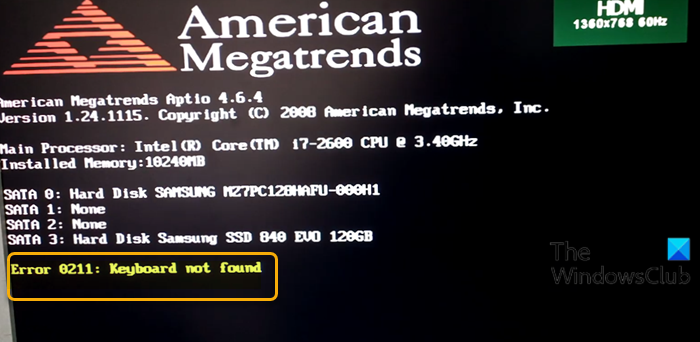
If you’re faced with this issue, you can try our recommended solutions below and see if that helps to resolve the issue.
- Clear CMOS
- Check if keyboard is short-circuited
- Perform System Restore.
Let’s take a look at the description of the process involved concerning each of the listed solutions.
Before you begin, you might want to check if your firmware is updated.
1] Clear CMOS
This solution requires you to clear CMOS to reset the BIOS. If the error is due to a misconfigured BIOS setting, resetting BIOS to its default values will most likely fix the issue.
You can reset the BIOS setting to its default values by removing and re-inserting the CMOS battery. The CMOS battery is flat and round in shape. It looks like the ones used in electronic toys and watches. If it’s not removable, don’t try to remove it; instead, reset the BIOS from within the BIOS environment.
To clear the CMOS on your Windows 10 notebook, do the following:
You may require the services of a hardware technician.
- Turn off all peripheral devices connected to the computer.
- Disconnect the power cord from the AC power source.
- Remove the computer cover.
- Find the battery on the board. The battery may be in a horizontal or vertical battery holder, or connected to an onboard header with a wire.
If the battery is in a holder, note the orientation of the + and – on the battery. With a medium flat-blade screwdriver, gently pry the battery-free from its connector.
If the battery is connected to an onboard header with a wire, disconnect the wire from the onboard header.
- Wait one hour, then reconnect the battery.
- Put the computer cover back on.
- Plug the computer and all devices back in.
- Power on the computer.
The computer should boot normally without the error. If not try the next solution.
2] Check if keyboard is short-circuited
Follow the instructions on the laptop manufacturer website for the removal of the keyboard in terms of removing the screws only. Remove the battery from the bay and make sure you’re grounded before fiddling. Remove the screws on the back of your laptop. Do not actually disassemble the notebook, just remove the screws. Replace the battery and turn your system on and see if it works. If it does not, this fix is not for you.
But, If it works, turn it off again and remove the battery. Re-insert the screws which are in a line towards the front of the case. Replace the battery and turn your system on. If it works, then the keyboard was short-circuited by the single screw in its middle which holds it in place. Your system will operate fine without that one screw as the keyboard is being held in by the wrist-rest’s screws as well.
3] Perform System Restore
Now, this may or may not help, but it’s worth trying. When you encounter this error, the keyboard becomes unresponsive and the only way to escape from the error message is switching the system off as Windows 10 boot halts at this point.
If you have no idea what changed that might have ended up interfering with the keyboard, you can perform System Restore but this time the procedure is for when you can’t boot to the desktop in Windows 10 as with this case.
Hope this helps!
Related post: Laptop keyboard not working on Windows 10.
Download PC Repair Tool to quickly find & fix Windows errors automatically
If when you boot your Windows 10 computer and encounter the Error 0211: Keyboard not found, then this post is intended to help you resolve the issue with the most suitable solutions.
If you’re faced with this issue, you can try our recommended solutions below and see if that helps to resolve the issue.
- Clear CMOS
- Check if keyboard is short-circuited
- Perform System Restore.
Let’s take a look at the description of the process involved concerning each of the listed solutions.
Before you begin, you might want to check if your firmware is updated.
1] Clear CMOS
This solution requires you to clear CMOS to reset the BIOS. If the error is due to a misconfigured BIOS setting, resetting BIOS to its default values will most likely fix the issue.
You can reset the BIOS setting to its default values by removing and re-inserting the CMOS battery. The CMOS battery is flat and round in shape. It looks like the ones used in electronic toys and watches. If it’s not removable, don’t try to remove it; instead, reset the BIOS from within the BIOS environment.
To clear the CMOS on your Windows 10 notebook, do the following:
You may require the services of a hardware technician.
- Turn off all peripheral devices connected to the computer.
- Disconnect the power cord from the AC power source.
- Remove the computer cover.
- Find the battery on the board. The battery may be in a horizontal or vertical battery holder, or connected to an onboard header with a wire.
If the battery is in a holder, note the orientation of the + and – on the battery. With a medium flat-blade screwdriver, gently pry the battery-free from its connector.
If the battery is connected to an onboard header with a wire, disconnect the wire from the onboard header.
- Wait one hour, then reconnect the battery.
- Put the computer cover back on.
- Plug the computer and all devices back in.
- Power on the computer.
The computer should boot normally without the error. If not try the next solution.
2] Check if keyboard is short-circuited
Follow the instructions on the laptop manufacturer website for the removal of the keyboard in terms of removing the screws only. Remove the battery from the bay and make sure you’re grounded before fiddling. Remove the screws on the back of your laptop. Do not actually disassemble the notebook, just remove the screws. Replace the battery and turn your system on and see if it works. If it does not, this fix is not for you.
But, If it works, turn it off again and remove the battery. Re-insert the screws which are in a line towards the front of the case. Replace the battery and turn your system on. If it works, then the keyboard was short-circuited by the single screw in its middle which holds it in place. Your system will operate fine without that one screw as the keyboard is being held in by the wrist-rest’s screws as well.
3] Perform System Restore
Now, this may or may not help, but it’s worth trying. When you encounter this error, the keyboard becomes unresponsive and the only way to escape from the error message is switching the system off as Windows 10 boot halts at this point.
If you have no idea what changed that might have ended up interfering with the keyboard, you can perform System Restore but this time the procedure is for when you can’t boot to the desktop in Windows 10 as with this case.
Hope this helps!
Related post: Laptop keyboard not working on Windows 10.
Obinna has completed B.Tech in Information & Communication Technology. He has worked as a System Support Engineer, primarily on User Endpoint Administration, as well as a Technical Analyst, primarily on Server/System Administration. He also has experience as a Network and Communications Officer. He has been a Windows Insider MVP (2020) and currently owns and runs a Computer Clinic.
У ноутбука Nawigator415W (платформа M220ES, аналог CLEVO M220S, PhoenxBIOS 4.0 Release 6.0) на аппаратном уровне отказал контроллер клавиатуры (не видит ни встроенную, ни внешнюю клавиатуры). Поэтому, тест оборудования при включении питания заканчивается ошибкой «0211: Keyboard Error» и т.к. клавиатура не работает нет возможности ни продолжить загрузку по «F1», ни войти с CMOS SETUP по «F2». Единственное, что получается – перепрошить BIOS с помощью «Сrisis_recovery_disk», симулировав ошибку CRC EEPROM. Но перепрошивка БИОСа без его редактирования ничего не дает. Пробовал редактировать БИОС при помощи Phoenix_BIOS_Editor_Pro_2.2.0.1, но установить игнорирование ошибки клавиатуры не удалось. Получается без проблем менять только строковые значения.
Помогите отредактировать БИОС, чтобы загрузка не останавливалась на ошибке или стала доступна внешняя USB-клавиатура. Файл БИОСа прилагаю, по этой ссылке rapidshare.com/files/113906661/__1057_risis_recovery_disk.rar.html лежит архив с БИОСом, утилитами из набора Кризис-диска и копия экрана с ошибкой.
Пока по глупости не сбросил CMOS, ноут отлично работал с ХР на внешней USB-клавиатуре.
| Вложение | Размер |
|---|---|
| BIOS.rar | 273.33 КБ |
-

Obinna has completed B.Tech in Information & Communication Technology. He has worked as a System Support Engineer, primarily on User Endpoint Administration, as well as a Technical Analyst, primarily on Server/System Administration. He also has experience as a Network and Communications Officer. He has been a Windows Insider MVP (2020) and currently owns and runs a Computer Clinic.
У ноутбука Nawigator415W (платформа M220ES, аналог CLEVO M220S, PhoenxBIOS 4.0 Release 6.0) на аппаратном уровне отказал контроллер клавиатуры (не видит ни встроенную, ни внешнюю клавиатуры). Поэтому, тест оборудования при включении питания заканчивается ошибкой «0211: Keyboard Error» и т.к. клавиатура не работает нет возможности ни продолжить загрузку по «F1», ни войти с CMOS SETUP по «F2». Единственное, что получается – перепрошить BIOS с помощью «Сrisis_recovery_disk», симулировав ошибку CRC EEPROM. Но перепрошивка БИОСа без его редактирования ничего не дает. Пробовал редактировать БИОС при помощи Phoenix_BIOS_Editor_Pro_2.2.0.1, но установить игнорирование ошибки клавиатуры не удалось. Получается без проблем менять только строковые значения.
Помогите отредактировать БИОС, чтобы загрузка не останавливалась на ошибке или стала доступна внешняя USB-клавиатура. Файл БИОСа прилагаю, по этой ссылке rapidshare.com/files/113906661/__1057_risis_recovery_disk.rar.html лежит архив с БИОСом, утилитами из набора Кризис-диска и копия экрана с ошибкой.
Пока по глупости не сбросил CMOS, ноут отлично работал с ХР на внешней USB-клавиатуре.
| Вложение | Размер |
|---|---|
| BIOS.rar | 273.33 КБ |
-

-
May 1 2012, 21:56
- Техника
- Cancel
Интересный глюк с ноутбуком
Пользуюсь ноутбуком ACER ASPIRE 5536G.
Каких-то принципиальных нареканий на его работу нет. Есть только пара проблем, с которыми не знаю как бороться. С одной из них столкнулся опять сегодня.
Беру ноутбук, включаю его, а он мне сразу впадает ошибку 0211: KeyBoard Error и просит нажать F1. Ну раз просит, то пожалуйста, нажимаю и он загружается. В поле ввода пароля при входе в Windows пароль набирается, а вот после загрузки словно все отрубили ни тачпад, ни клавиатура не откликаются.
Решение нашел на одном из форумов. Очень просто — достать основную батарею и затем вставить ее обратно. После этой несложной манипуляции дествительно все заработало. Так что большое спасибо автору. Выручил.
Download PC Repair Tool to quickly find & fix Windows errors automatically
If when you boot your Windows 10 computer and encounter the Error 0211: Keyboard not found, then this post is intended to help you resolve the issue with the most suitable solutions.
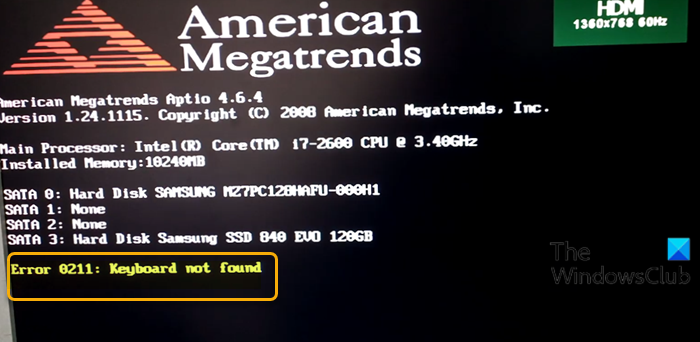
Каких-то принципиальных нареканий на его работу нет. Есть только пара проблем, с которыми не знаю как бороться. С одной из них столкнулся опять сегодня.
Беру ноутбук, включаю его, а он мне сразу впадает ошибку 0211: KeyBoard Error и просит нажать F1. Ну раз просит, то пожалуйста, нажимаю и он загружается. В поле ввода пароля при входе в Windows пароль набирается, а вот после загрузки словно все отрубили ни тачпад, ни клавиатура не откликаются.
Решение нашел на одном из форумов. Очень просто — достать основную батарею и затем вставить ее обратно. После этой несложной манипуляции дествительно все заработало. Так что большое спасибо автору. Выручил.
Download PC Repair Tool to quickly find & fix Windows errors automatically
If when you boot your Windows 10 computer and encounter the Error 0211: Keyboard not found, then this post is intended to help you resolve the issue with the most suitable solutions.
If you’re faced with this issue, you can try our recommended solutions below and see if that helps to resolve the issue.
- Clear CMOS
- Check if keyboard is short-circuited
- Perform System Restore.
Let’s take a look at the description of the process involved concerning each of the listed solutions.
Before you begin, you might want to check if your firmware is updated.
1] Clear CMOS
This solution requires you to clear CMOS to reset the BIOS. If the error is due to a misconfigured BIOS setting, resetting BIOS to its default values will most likely fix the issue.
You can reset the BIOS setting to its default values by removing and re-inserting the CMOS battery. The CMOS battery is flat and round in shape. It looks like the ones used in electronic toys and watches. If it’s not removable, don’t try to remove it; instead, reset the BIOS from within the BIOS environment.
To clear the CMOS on your Windows 10 notebook, do the following:
You may require the services of a hardware technician.
- Turn off all peripheral devices connected to the computer.
- Disconnect the power cord from the AC power source.
- Remove the computer cover.
- Find the battery on the board. The battery may be in a horizontal or vertical battery holder, or connected to an onboard header with a wire.
If the battery is in a holder, note the orientation of the + and – on the battery. With a medium flat-blade screwdriver, gently pry the battery-free from its connector.
If the battery is connected to an onboard header with a wire, disconnect the wire from the onboard header.
- Wait one hour, then reconnect the battery.
- Put the computer cover back on.
- Plug the computer and all devices back in.
- Power on the computer.
The computer should boot normally without the error. If not try the next solution.
2] Check if keyboard is short-circuited
Follow the instructions on the laptop manufacturer website for the removal of the keyboard in terms of removing the screws only. Remove the battery from the bay and make sure you’re grounded before fiddling. Remove the screws on the back of your laptop. Do not actually disassemble the notebook, just remove the screws. Replace the battery and turn your system on and see if it works. If it does not, this fix is not for you.
But, If it works, turn it off again and remove the battery. Re-insert the screws which are in a line towards the front of the case. Replace the battery and turn your system on. If it works, then the keyboard was short-circuited by the single screw in its middle which holds it in place. Your system will operate fine without that one screw as the keyboard is being held in by the wrist-rest’s screws as well.
3] Perform System Restore
Now, this may or may not help, but it’s worth trying. When you encounter this error, the keyboard becomes unresponsive and the only way to escape from the error message is switching the system off as Windows 10 boot halts at this point.
If you have no idea what changed that might have ended up interfering with the keyboard, you can perform System Restore but this time the procedure is for when you can’t boot to the desktop in Windows 10 as with this case.
Hope this helps!
Related post: Laptop keyboard not working on Windows 10.
Obinna has completed B.Tech in Information & Communication Technology. He has worked as a System Support Engineer, primarily on User Endpoint Administration, as well as a Technical Analyst, primarily on Server/System Administration. He also has experience as a Network and Communications Officer. He has been a Windows Insider MVP (2020) and currently owns and runs a Computer Clinic.
Click here follow the steps to fix Phoenix 0211 Keyboard Error and related errors.
Instructions
|
|
|
|
To Fix (Phoenix 0211 Keyboard Error) error you need to |
|
|
Step 1: |
|
|---|---|
| Download (Phoenix 0211 Keyboard Error) Repair Tool |
|
|
Step 2: |
|
| Click the «Scan» button | |
|
Step 3: |
|
| Click ‘Fix All‘ and you’re done! | |
|
Compatibility:
Limitations: |


Phoenix 0211 Keyboard Error Error Codes are caused in one way or another by misconfigured system files
in your windows operating system.
If you have Phoenix 0211 Keyboard Error errors then we strongly recommend that you
Download (Phoenix 0211 Keyboard Error) Repair Tool.
This article contains information that shows you how to fix
Phoenix 0211 Keyboard Error
both
(manually) and (automatically) , In addition, this article will help you troubleshoot some common error messages related to Phoenix 0211 Keyboard Error error code that you may receive.
Note:
This article was updated on 2023-04-04 and previously published under WIKI_Q210794
Contents
- 1. What is Phoenix 0211 Keyboard Error error?
- 2. What causes Phoenix 0211 Keyboard Error error?
- 3. How to easily fix Phoenix 0211 Keyboard Error errors
The Phoenix 0211 Keyboard Error error is the Hexadecimal format of the error caused. This is common error code format used by windows and other windows compatible software and driver vendors.
This code is used by the vendor to identify the error caused. This Phoenix 0211 Keyboard Error error code has a numeric error number and a technical description. In some cases the error may have more parameters in Phoenix 0211 Keyboard Error format .This additional hexadecimal code are the address of the memory locations where the instruction(s) was loaded at the time of the error.
What causes Phoenix 0211 Keyboard Error error?
The Phoenix 0211 Keyboard Error error may be caused by windows system files damage. The corrupted system files entries can be a real threat to the well being of your computer.
There can be many events which may have resulted in the system files errors. An incomplete installation, an incomplete uninstall, improper deletion of applications or hardware. It can also be caused if your computer is recovered from a virus or adware/spyware
attack or by an improper shutdown of the computer. All the above actives
may result in the deletion or corruption of the entries in the windows
system files. This corrupted system file will lead to the missing and wrongly
linked information and files needed for the proper working of the
application.
How to easily fix Phoenix 0211 Keyboard Error error?
There are two (2) ways to fix Phoenix 0211 Keyboard Error Error:
Advanced Computer User Solution (manual update):
1) Start your computer and log on as an administrator.
2) Click the Start button then select All Programs, Accessories, System Tools, and then click System Restore.
3) In the new window, select «Restore my computer to an earlier time» option and then click Next.
4) Select the most recent system restore point from the «On this list, click a restore point» list, and then click Next.
5) Click Next on the confirmation window.
6) Restarts the computer when the restoration is finished.
Novice Computer User Solution (completely automated):
1) Download (Phoenix 0211 Keyboard Error) repair utility.

2) Install program and click Scan button.
3) Click the Fix Errors button when scan is completed.
4) Restart your computer.
How does it work?
This tool will scan and diagnose, then repairs, your PC with patent
pending technology that fix your windows operating system registry
structure.
basic features: (repairs system freezing and rebooting issues , start-up customization , browser helper object management , program removal management , live updates , windows structure repair.)
Over the past few days, a number of users have reported Compaq Presario keyboard error 0211.
Speed up your PC in just a few clicks
Is your computer running slow and unstable? Are you plagued by mysterious errors, and worried about data loss or hardware failure? Then you need ASR Pro � the ultimate software for repairing Windows problems. With ASR Pro, you can fix a wide range of issues in just a few clicks, including the dreaded Blue Screen of Death. The application also detects crashing applications and files, so you can quickly resolve their problems. And best of all, it�s completely free! So don�t wait � download ASR Pro now and enjoy a smooth, stable and error-free PC experience.

I am
Andrew uses a complete Compaq Presario 700 US. Every time I start,
I am getting “0211: Keyboard Error” or
Keyboard-mouse is responsive. The key sometimes becomes
works but the mouse does not. What’s wrong with mine
Computer?!?!?!?!
Do you use USB keyboards/mouses? If so, make sure Legacy is USB
enabled in bios. If new, try a different keyboard. If
another keyboard does not solve the problem, the type may be
Connecting to the motherboard also works t.
I am using Compaq 700 Presario USA. Every time I start,
I also don’t get the special message “0211: Keyboard Error”, then my
Keyboard or mouse is responsive. From time to time keyboard
works but the mouse does not. What’s wrong with mine
Computer?!?!?!?!
I have a Compaq Presario 7 US running. Every time I sneak up on it,
I get “0211: Keyboard Error” frequency and my
keyboard and mouse won’t stabilize. Sometimes the keyboard
works, but unfortunately the mouse doesn’t. What happened to my
computer?!?!?!?!
Courtesy: Andrew
I’m using a Compaq Presario 600 US. Every time I exercise,
I get the message “0211: Keyboard error”,
my keyboard and mouse are not responding. Sometimes the keyboard
does not work, but the mouse does. What happened to my
computer?!?!?!?!
Do you use a flash keyboard/mouse? If so, make sure Can Legacy USB
is enabled in the BIOS. If not, try the new exciting keyboard. If
another keyboard doesn’t help, the problem may be
connecting to the motherboard.
If you are facing a specific error 0211: Keyboard detected when starting a better Windows 10 PC, this post is not intended to help you solve the problem with the best solutions.
If you’re having this problem with ezah=”90″ be sure to try our suggested solutions below and see if that fixes the problem.
- Clear CMOS
- Check if keyboard is indeed shorted
- Perform repair.
Let’s get an idea of the description of the program in question in relation to each of the presented solutions.
Pr Customers should ensure their firmware is up to date before proceeding.
1] Clear CMOS
This process requires clearing the CMOS to reset the BIOS. If the root cause of the problem is an incorrectly configured BIOS version, resetting the BIOS settings to their default values will most likely fix the problem.

You can reset the BIOS settings to their defaults by removing and reinserting the CMOS battery. CMOS is flat and round inside. This is reminiscent of the programs used in electronic toys and racing watches. If it is removable, you have no way to remove it; Instead, reset the entire BIOS in the BIOS environment.
This solution requires a specific CMOS to reset the BIOS. If the error is caused by an incorrect BIOS setting, resetting the BIOS to defaults will almost certainly fix the problem. You can adjust the BIOS settings according to their impact values by removing and reinserting the CMOS battery.
To clear CMOS on an entire Windows 10 laptop, follow these steps:
- Disconnect all peripherals connected to the computer.
- Disconnect the power cord from this AC source.
- Remove the cover of the calculator.
- Locate the battery on board. The battery may be in a bulky or vertical battery holder, or it may be in an integrated slot with a dedicated cable.
If the battery is in the holder, look outsidebearing in mind the orientation of + and – on . Carefully pry the battery out of the slot using a medium flat screwdriver.
If the battery is connected to the on-board base with a cable, disconnect the cable from the on-board base yourself.A
- Wait an hour and then reconnect the battery.
- Replace the computer cover.
- Reconnect your computer and all devices.
- Turn on the computer .
Otherwise, the computer should start without error. Otherwise, try the next solution.
2] Check if the keyboard is closed
Follow the instructions on the laptop manufacturer’s website for removing the keyboard to remove only the screws. Remove the battery from the bay, but make sure you’re grounded before fiddling around. Remove the screws from the back of the laptop. Do not remove the laptop, just unscrew the current screws. Replace the battery, turn on the system and see if it works. Otherwise, this solution is not for you.
But if it works, turn it off and wipe the battery. Reinstall the screws facing the same direction.towards the side of the body. Replace some batteries and turn on the system. If this works, the keyboard may have been shorted out by the single screw in its center that holds it in place. Your system will also work without a screw when the keyboard is held completely in place by the palm rest screws. Run
3] System Restore
Well, it certainly can’t or won’t help, but it’s definitely worth it. When you encounter this error, the keyboard stops responding and the only way to avoid the error message is to turn the system on its side as Windows 10 stops loading at this point.
У ноутбука Nawigator415W (платформа M220ES, аналог CLEVO M220S, PhoenxBIOS 4.0 Release 6.0) на аппаратном уровне отказал контроллер клавиатуры (не видит ни встроенную, ни внешнюю клавиатуры). Поэтому, тест оборудования при включении питания заканчивается ошибкой «0211: Keyboard Error» и т.к. клавиатура не работает нет возможности ни продолжить загрузку по «F1», ни войти с CMOS SETUP по «F2». Единственное, что получается – перепрошить BIOS с помощью «Сrisis_recovery_disk», симулировав ошибку CRC EEPROM. Но перепрошивка БИОСа без его редактирования ничего не дает. Пробовал редактировать БИОС при помощи Phoenix_BIOS_Editor_Pro_2.2.0.1, но установить игнорирование ошибки клавиатуры не удалось. Получается без проблем менять только строковые значения.
Помогите отредактировать БИОС, чтобы загрузка не останавливалась на ошибке или стала доступна внешняя USB-клавиатура. Файл БИОСа прилагаю, по этой ссылке rapidshare.com/files/113906661/__1057_risis_recovery_disk.rar.html лежит архив с БИОСом, утилитами из набора Кризис-диска и копия экрана с ошибкой.
Пока по глупости не сбросил CMOS, ноут отлично работал с ХР на внешней USB-клавиатуре.
| Вложение | Размер |
|---|---|
| BIOS.rar | 273.33 КБ |
-
-
May 1 2012, 21:56
- Техника
- Cancel
Интересный глюк с ноутбуком
Пользуюсь ноутбуком ACER ASPIRE 5536G.
Каких-то принципиальных нареканий на его работу нет. Есть только пара проблем, с которыми не знаю как бороться. С одной из них столкнулся опять сегодня.
Беру ноутбук, включаю его, а он мне сразу впадает ошибку 0211: KeyBoard Error и просит нажать F1. Ну раз просит, то пожалуйста, нажимаю и он загружается. В поле ввода пароля при входе в Windows пароль набирается, а вот после загрузки словно все отрубили ни тачпад, ни клавиатура не откликаются.
Решение нашел на одном из форумов. Очень просто — достать основную батарею и затем вставить ее обратно. После этой несложной манипуляции дествительно все заработало. Так что большое спасибо автору. Выручил.