Время на прочтение
5 мин
Количество просмотров 398K
JavaScript может быть кошмаром при отладке: некоторые ошибки, которые он выдает, могут быть очень трудны для понимания с первого взгляда, и выдаваемые номера строк также не всегда полезны. Разве не было бы полезно иметь список, глядя на который, можно понять смысл ошибок и как исправить их? Вот он!
Ниже представлен список странных ошибок в JavaScript. Разные браузеры могут выдавать разные сообщения об одинаковых ошибках, поэтому приведено несколько примеров там, где возможно.
Как читать ошибки?
Перед самим списком, давайте быстро взглянем на структуру сообщения об ошибке. Понимание структуры помогает понимать ошибки, и вы получите меньше проблем, если наткнетесь на ошибки, не представленные в этом списке.
Типичная ошибка из Chrome выглядит так:
Uncaught TypeError: undefined is not a function
Структура ошибки следующая:
- Uncaught TypeError: эта часть сообщения обычно не особо полезна.
Uncaughtзначит, что ошибка не была перехвачена вcatch, аTypeError— это название ошибки. - undefined is not a function: это та самая часть про ошибку. В случае с сообщениями об ошибках, читать их нужно прямо буквально. Например, в этом случае, она значит то, что код попытался использовать значение
undefinedкак функцию.
Другие webkit-браузеры, такие как Safari, выдают ошибки примерно в таком же формате, как и Chrome. Ошибки из Firefox похожи, но не всегда включают в себя первую часть, и последние версии Internet Explorer также выдают более простые ошибки, но в этом случае проще — не всегда значит лучше.
Теперь к самим ошибкам.
Uncaught TypeError: undefined is not a function
Связанные ошибки: number is not a function, object is not a function, string is not a function, Unhandled Error: ‘foo’ is not a function, Function Expected
Возникает при попытке вызова значения как функции, когда значение функцией не является. Например:
var foo = undefined;
foo();
Эта ошибка обычно возникает, если вы пытаетесь вызвать функцию для объекта, но опечатались в названии.
var x = document.getElementByID('foo');
Несуществующие свойства объекта по-умолчанию имеют значение undefined, что приводит к этой ошибке.
Другие вариации, такие как “number is not a function” возникают при попытке вызвать число, как будто оно является функцией.
Как исправить ошибку: убедитесь в корректности имени функции. Для этой ошибки, номер строки обычно указывает в правильное место.
Uncaught ReferenceError: Invalid left-hand side in assignment
Связанные ошибки: Uncaught exception: ReferenceError: Cannot assign to ‘functionCall()’, Uncaught exception: ReferenceError: Cannot assign to ‘this’
Вызвано попыткой присвоить значение тому, чему невозможно присвоить значение.
Наиболее частый пример этой ошибки — это условие в if:
if(doSomething() = 'somevalue')
В этом примере программист случайно использовал один знак равенства вместо двух. Выражение “left-hand side in assignment” относится к левой части знака равенства, а, как можно видеть в данном примере, левая часть содержит что-то, чему нельзя присвоить значение, что и приводит к ошибке.
Как исправить ошибку: убедитесь, что вы не пытаетесь присвоить значение результату функции или ключевому слову this.
Uncaught TypeError: Converting circular structure to JSON
Связанные ошибки: Uncaught exception: TypeError: JSON.stringify: Not an acyclic Object, TypeError: cyclic object value, Circular reference in value argument not supported
Всегда вызвано циклической ссылкой в объекте, которая потом передается в JSON.stringify.
var a = { };
var b = { a: a };
a.b = b;
JSON.stringify(a);
Так как a и b в примере выше имеют ссылки друг на друга, результирующий объект не может быть приведен к JSON.
Как исправить ошибку: удалите циклические ссылки, как в примере выше, из всех объектов, которые вы хотите сконвертировать в JSON.
Unexpected token ;
Связанные ошибки: Expected ), missing ) after argument list
Интерпретатор JavaScript что-то ожидал, но не обнаружил там этого. Обычно вызвано пропущенными фигурными, круглыми или квадратными скобками.
Токен в данной ошибке может быть разным — может быть написано “Unexpected token ]”, “Expected {” или что-то еще.
Как исправить ошибку: иногда номер строки не указывает на правильное местоположение, что затрудняет исправление ошибки.
Ошибка с [ ] { } ( ) обычно вызвано несовпадающей парой. Проверьте, все ли ваши скобки имеют закрывающую пару. В этом случае, номер строки обычно указывает на что-то другое, а не на проблемный символ.
Unexpected / связано с регулярными выражениями. Номер строки для данного случая обычно правильный.
Unexpected; обычно вызвано символом; внутри литерала объекта или массива, или списка аргументов вызова функции. Номер строки обычно также будет верным для данного случая.
Uncaught SyntaxError: Unexpected token ILLEGAL
Связанные ошибки: Unterminated String Literal, Invalid Line Terminator
В строковом литерале пропущена закрывающая кавычка.
Как исправить ошибку: убедитесь, что все строки имеют правильные закрывающие кавычки.
Uncaught TypeError: Cannot read property ‘foo’ of null, Uncaught TypeError: Cannot read property ‘foo’ of undefined
Связанные ошибки: TypeError: someVal is null, Unable to get property ‘foo’ of undefined or null reference
Попытка прочитать null или undefined так, как будто это объект. Например:
var someVal = null;
console.log(someVal.foo);
Как исправить ошибку: обычно вызвано опечатками. Проверьте, все ли переменные, использованные рядом со строкой, указывающей на ошибку, правильно названы.
Uncaught TypeError: Cannot set property ‘foo’ of null, Uncaught TypeError: Cannot set property ‘foo’ of undefined
Связанные ошибки: TypeError: someVal is undefined, Unable to set property ‘foo’ of undefined or null reference
Попытка записать null или undefined так, как будто это объект. Например:
var someVal = null;
someVal.foo = 1;
Как исправить ошибку: это тоже обычно вызвано ошибками. Проверьте имена переменных рядом со строкой, указывающей на ошибку.
Uncaught RangeError: Maximum call stack size exceeded
Связанные ошибки: Uncaught exception: RangeError: Maximum recursion depth exceeded, too much recursion, Stack overflow
Обычно вызвано неправильно программной логикой, что приводит к бесконечному вызову рекурсивной функции.
Как исправить ошибку: проверьте рекурсивные функции на ошибки, которые могут вынудить их делать рекурсивные вызовы вечно.
Uncaught URIError: URI malformed
Связанные ошибки: URIError: malformed URI sequence
Вызвано некорректным вызовом decodeURIComponent.
Как исправить ошибку: убедитесь, что вызовы decodeURIComponent на строке ошибки получают корректные входные данные.
XMLHttpRequest cannot load some/url. No ‘Access-Control-Allow-Origin’ header is present on the requested resource
Связанные ошибки: Cross-Origin Request Blocked: The Same Origin Policy disallows reading the remote resource at some/url
Эта проблема всегда связана с использованием XMLHttpRequest.
Как исправить ошибку: убедитесь в корректности запрашиваемого URL и в том, что он удовлетворяет same-origin policy. Хороший способ найти проблемный код — посмотреть на URL в сообщении ошибки и найти его в своём коде.
InvalidStateError: An attempt was made to use an object that is not, or is no longer, usable
Связанные ошибки: InvalidStateError, DOMException code 11
Означает то, что код вызвал функцию, которую нельзя было вызывать в текущем состоянии. Обычно связано c XMLHttpRequest при попытке вызвать на нём функции до его готовности.
var xhr = new XMLHttpRequest();
xhr.setRequestHeader('Some-Header', 'val');
В данном случае вы получите ошибку потому, что функция setRequestHeader может быть вызвана только после вызова xhr.open.
Как исправить ошибку: посмотрите на код в строке, указывающей на ошибку, и убедитесь, что он вызывается в правильный момент или добавляет нужные вызовы до этого (как с xhr.open).
Заключение
JavaScript содержит в себе одни из самых бесполезных ошибок, которые я когда-либо видел, за исключением печально известной Expected T_PAAMAYIM_NEKUDOTAYIM в PHP. Большая ознакомленность с ошибками привносит больше ясности. Современные браузеры тоже помогают, так как больше не выдают абсолютно бесполезные ошибки, как это было раньше.
Какие самые непонятные ошибки вы встречали? Делитесь своими наблюдениями в комментариях.
P.S. Этот перевод можно улучшить, отправив PR здесь.
 Download Article
Download Article
If you’re seeing an error that says «a JavaScript error occurred in the main process» or «a fatal JavaScript error occurred» when trying to open or install Discord, there are several potential fixes. While these fixes are designed to resolve this error on Discord, they should work to resolve similar errors in other apps, including Microsoft Teams. We’ll show you how to troubleshoot JavaScript errors for Discord, Microsoft Teams, and other Windows 10 apps.
-

1
Open your antivirus or antimalware software. If you’re unable to install Discord or another app on your PC because of a JavaScript error, such as «a JavaScript error occurred in the main process,» your antivirus software may be blocking the installer. You can fix this by adding an exclusion for the installer.
- If you’re using Windows Security, which comes for free with Windows, type security into the search bar and then click Windows Security.
- The remaining steps will cover unblocking an installer with Windows Security, but your antivirus suite may have different menu options.
-
2
Go to the Virus and threat protection area. This gives you a general overview of your antivirus settings.
Advertisement
-
3
Click Manage settings. This opens the settings for your antivirus protection.
-
4
Add an exclusion for the Discord installer. If you’re using Windows Security, click Add an exclusion, select File, and then open your download folder and select DiscordSetup.exe (or the name of the installer you’re trying to run).
-
5
Run the installer again. Once you’ve allowed the installer to run, you should resolve JavaScript errors that occur during installation.


Advertisement
-
1
Close Discord (or the app you’re trying to fix). If you get a JavaScript error when trying to launch or install Discord or another app, the application data may be corrupt. If the app is running right now, you’ll want to close it so you can properly delete and reinstall it. Make sure it’s not minimized to your taskbar.
- To be sure it’s closed, press Control + Alt + Delete and click Task Manager. If you see a that the app is running, click to select it, and then click End Task.[1]
- Even if you’ve only tried installing the app and were not successful, you should still use this method before you try to install again.
- To be sure it’s closed, press Control + Alt + Delete and click Task Manager. If you see a that the app is running, click to select it, and then click End Task.[1]
-
2
Press ⊞ Win+S. This activates the Windows search bar.
-
3
Type %appdata% and press ↵ Enter. This opens a File Explorer window to your application data.
-
4
Permanently delete the folder for the app you’re trying to fix. For example, if you’re trying to fix Discord, you’ll want to delete the «Discord» folder. Here’s how:
- Click the folder once to select it. Don’t open the folder—just select it for now.
- Hold down the Shift key as you press Delete.
- Click Yes.
-
5
Press ⊞ Win+S. This activates the Windows search bar again.
-
6
Type %LocalAppData% and press ↵ Enter. This opens a File Explorer window to your local app data.
-
7
Permanently delete the app’s folder here as well. Just hold down the Shift key as you press Delete, and then confirm deletion.
- If you don’t see this folder, just skip this step.
-
8
Uninstall Discord (or the app in question) from your PC. Here’s how:
- Open the Windows menu and click the Settings gear.
- Go to Apps > Apps & features.
- Select the app and click Uninstall. If you don’t see the app here, just move to the next step.
- Click Uninstall to confirm.
-
9
Reinstall the app. If you’re reinstalling Discord, you can download the installer from https://discord.com/download. Once downloaded, double-click the installer and follow the on-screen instructions—this should fix just about all installation errors.


Advertisement
-
1
Open your Windows Settings
. If you’re getting an error that says «a JavaScript error occurred in the main process» when trying to install Microsoft Teams, this may indicate a problem with the C++ libraries installed on your PC.[2]
- While this method is known to work for Teams, it may also resolve the same issue in other apps.
-
2
Click Apps. This opens the Settings panel to the Apps list.
-
3
Click Apps & Features. This option is in the left panel.[3]
-
4
Click the latest version of Microsoft Visual C++. You’ll probably see several instances of Visual ++ here—you’ll want to click the one that has the most recent date.
-
5
Click Change or Advanced options. You should see one of these two options here.
-
6
Click Repair. This performs a few repair steps to the C++ libraries.
- If prompted, enter your administrator password to confirm.
-
7
Try running the installer again. This should resolve most JavaScript installation errors with Microsoft Teams on Windows 10.


Advertisement
-
1
Close Discord (or the app you’re trying to fix). If you get a JavaScript error when trying to start Discord or another app, certain processes may be failing because they need more permissions. If the app is running right now, you’ll want to close it. Make sure it’s not minimized to your taskbar.
- To be sure it’s closed, press Control + Alt + Delete and click Task Manager. If you see a process for the app running, click to select it, and then click End Task.
-
2
Right-click the Discord icon on your desktop or in the Windows menu. A menu will expand.
-
3
Click Open file location. If you don’t see this option, you may have to click More first. This takes you to the app’s install location.
-
4
Double-click the latest version of Discord. If you’ve run a few Discord updates, you may have several folders beginning with app- and ending with a number. Double-click the one with the most recent version number.
- If you’re trying to fix a different app, you’ll usually see that app right here in the folder you’ve opened. If not, look around for a file with the app’s name—it may end with «.exe.»
-
5
Right-click the app and select Properties. Properties for the selected app will appear.
-
6
Click the Compatibility tab. It’s at the top of the window.
-
7
Check the box next to «Run this program as an administrator.» This gives the app permission to everything on your PC, which may clear up issues caused by access rights.
-
8
Click OK. This saves your changes.
-
9
Start Discord or your preferred app normally. Now that you’ve set the app to run as an administrator, starting it by double-clicking its icon on your desktop or in the Windows menu will run it with elevated privileges.


Advertisement
Add New Question
-
Question
Why am I getting a Javascript error with WordPress?

Luigi Oppido is the Owner and Operator of Pleasure Point Computers in Santa Cruz, California. Luigi has over 25 years of experience in general computer repair, data recovery, virus removal, and upgrades. He is also the host of the Computer Man Show! broadcasted on KSQD covering central California for over two years.
Computer & Tech Specialist
Expert Answer
Check the website on other devices, like another computer or a tablet. If the same error shows up, there’s an issue with the code that needs to be looked at. It also helps to make sure that Java is up-to-date on your computer, since a lot of people don’t even update Java anymore (since it’s updated with the operating system).

Ask a Question
200 characters left
Include your email address to get a message when this question is answered.
Submit
Advertisement
About This Article
Article SummaryX
1. Unblock the installer in your antivirus software.
2. Try deleting the app’s folders in AppData and LocalAppData and then reinstalling.
3. Repair the latest version of Microsoft Visual C++ in Apps & Features.
4. Run the app as an administrator.
Did this summary help you?
Thanks to all authors for creating a page that has been read 38,483 times.
Is this article up to date?
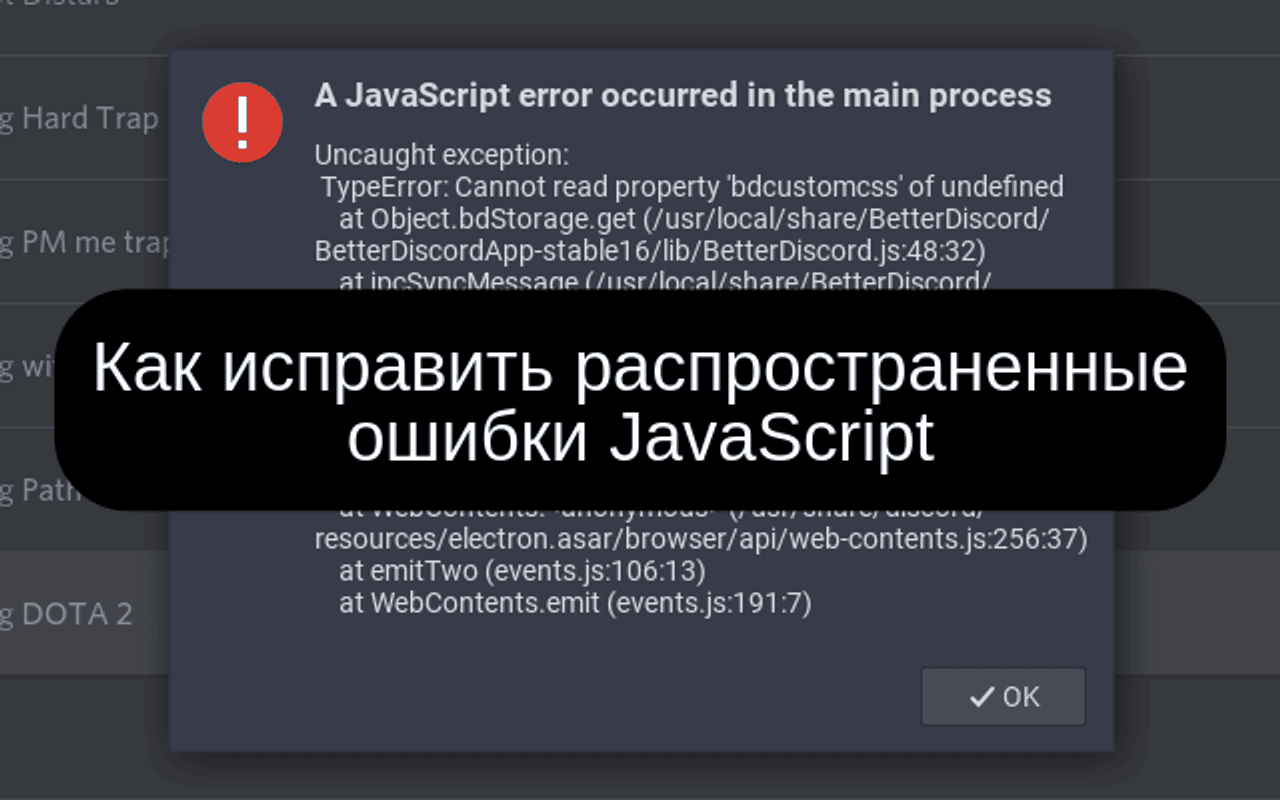
Ошибки в JavaScript достаточно сложно отслеживать и исправлять. У каждой ошибки есть свое название. Это помогает с определением проблемы и ее исправлением. Необработанные ошибки отображаются в веб-консоли браузера или выводе Node.js приложения. Рассмотрим типы распространенных ошибок в JavaScript, причины возникновения и как их исправить. По каждому типу показаны примеры, чтобы улучшить ваше понимание ошибки и действий для исправления.
Нет единого стандарта именований ошибок в разных браузерах. Для статьи взяты имена ошибок из браузера Google Chrome.
TypeError: Cannot read property “x” of “y”
Ошибки в JavaScript достаточно сложно отслеживать и исправлять. У каждой ошибки есть свое название. Это помогает с определением проблемы и ее исправлением. Необработанные ошибки отображаются в веб-консоли браузера или выводе Node.js приложения. Рассмотрим типы распространенных ошибок в JavaScript, причины возникновения и как их исправить. По каждому типу показаны примеры, чтобы улучшить ваше понимание ошибки и действий для исправления.
Нет единого стандарта именований ошибок в разных браузерах. Для статьи взяты имена ошибок из браузера Google Chrome.
TypeError: Cannot read property “x” of “y”
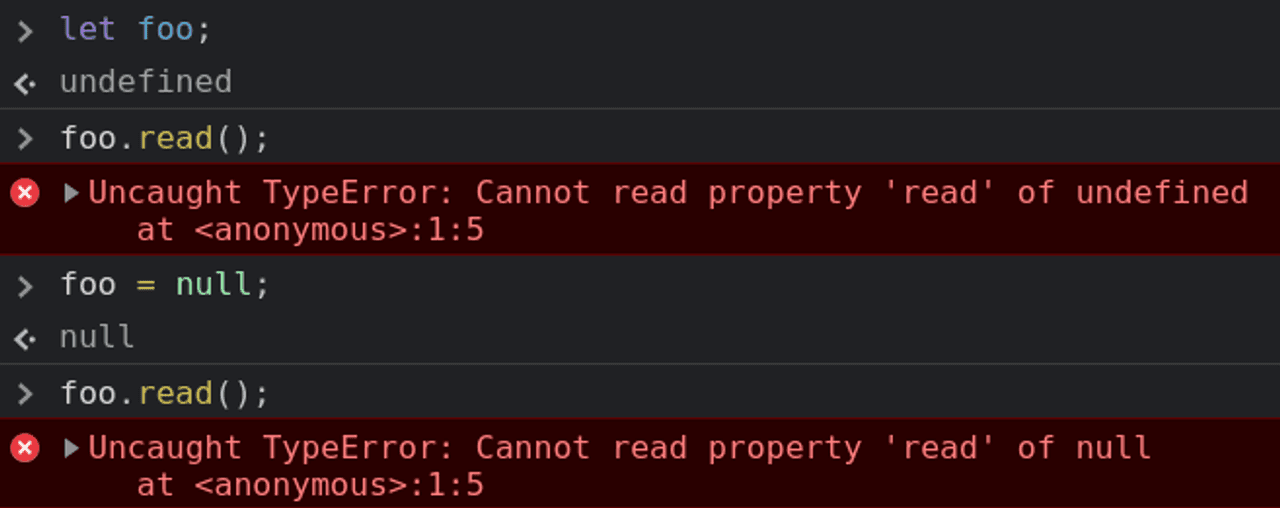
Эта ошибка возникает, когда мы вызываем метод или читаем свойство на undefined или null значениях.
В браузере Safari эти ошибки названы по-другому:
- ‘undefined’ is not an object
- ‘null’ is not an object
В браузере Mozilla Firefox:
- TypeError: «x» is undefined
- TypeError: «x» is null
Примеры ошибок
- Вызов функции на
undefined:
let foo;
foo.read(); // TypeError: Cannot read property 'read' of undefined- Чтение свойства на
null:
foo = null;
foo.total; // TypeError: Cannot read property 'total of null
Исправление ошибки
Есть несколько вариантов исправления в зависимости от контекста проблемы.
- Задать значение переменной или свойству объекта перед его использованием.
let foo = {
  total: 5
};let total = foo.total; // 5
- Проверять, что переменная определена, перед ее использованием.
if (typeof foo !== 'undefined' && typeof foo.total !== 'undefined') {
  let total = foo.total;
}
TypeError: “x” is not a function
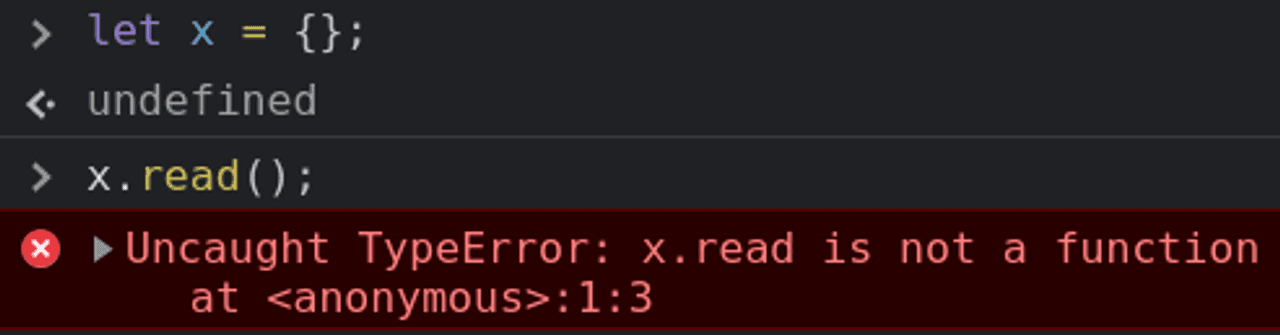
Ошибка происходит, когда мы пытаемся вызвать неопределенную функцию.
Примеры ошибок
Есть несколько вариантов исправления в зависимости от причин ошибки:
- Функция не определена.
let x = {};x.read(); // TypeError: x.read is not a function
В этом примере определим функцию read().
let x = {
    read: function() {
        return 2;
    }
};x.read(); // 2
- В месте вызова или объявлении функции есть опечатка в имени функции.
let a = {
  sam: function(a, b) {
    return a + b;
  }
}a.sum(1, 1); // TypeError: a.sum is not a function
После исправления опечатки в имени функции sum().
let a = {
  sum: function(a, b) {
    return a + b;
  }
}a.sum(1, 1); // 2
TypeError: Cannot set property “x” of undefined

Ошибка происходит, когда мы пытаемся вызвать неопределенную функцию.
Примеры ошибок
Есть несколько вариантов исправления в зависимости от причин ошибки:
- Функция не определена.
let x = {};x.read(); // TypeError: x.read is not a function
В этом примере определим функцию read().
let x = {
    read: function() {
        return 2;
    }
};x.read(); // 2
- В месте вызова или объявлении функции есть опечатка в имени функции.
let a = {
  sam: function(a, b) {
    return a + b;
  }
}a.sum(1, 1); // TypeError: a.sum is not a function
После исправления опечатки в имени функции sum().
let a = {
  sum: function(a, b) {
    return a + b;
  }
}a.sum(1, 1); // 2
TypeError: Cannot set property “x” of undefined
Эта ошибка возникает, когда мы пытаемся записать в свойство undefined значения.
let test;test.value = 0; // Uncaught TypeError: Cannot set property 'value' of undefined
Решением в данном примере будет инициализация переменной test новым объектом так:
let test = {};test.value = 0;
Или вот так:
let test = {
  value: 0
};
ReferenceError: “x” is not defined
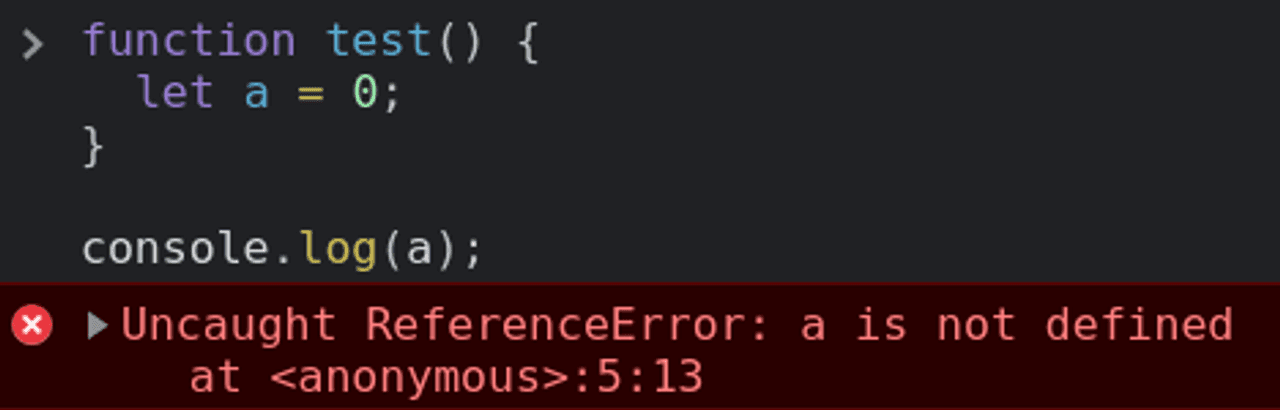
Эта ошибка возникает в нескольких случаях.
Переменная не объявлена
text.trim(); // Uncaught ReferenceError: text is not definedПеременная text не объявлена. Для использования строкового метода trim() переменную text нужно объявить и инициализировать строкой.
let text = " Test ";text.trim(); // "Test"
Нет доступа к переменной в текущей области видимости
function test() {
  let a = 0;
}console.log(a); // Uncaught ReferenceError: a is not defined
Переменную a нужно сделать доступной для использования там, где происходит ошибка.
let a = 0;function test() {
a = 1;
}
console.log(a); // 0
test();
console.log(a); // 1
RangeError: Maximum call stack size exceeded
Эта ошибка возникает в случае вызова бесконечной рекурсивной функции. У такой функции нет выхода из нее или он не применяется.
function countDown(fromNumber) {
console.log(fromNumber); countDown(fromNumber - 1); // RangeError: Maximum call stack size exceeded
}
countDown(10);
Чтобы исправить эту ошибку в рекурсивную функцию countDown() нам нужно добавить условие для выхода из рекурсии.
function countDown(fromNumber) {
console.log(fromNumber); let nextNumber = fromNumber - 1;
if (nextNumber > 0) {
countDown(nextNumber);
}
}
countDown(10);
RangeError: precision is out of range

Эта ошибка возникает в нескольких случаях.
Переменная не объявлена
text.trim(); // Uncaught ReferenceError: text is not definedПеременная text не объявлена. Для использования строкового метода trim() переменную text нужно объявить и инициализировать строкой.
let text = " Test ";text.trim(); // "Test"
Нет доступа к переменной в текущей области видимости
function test() {
  let a = 0;
}console.log(a); // Uncaught ReferenceError: a is not defined
Переменную a нужно сделать доступной для использования там, где происходит ошибка.
let a = 0;function test() {
a = 1;
}
console.log(a); // 0
test();
console.log(a); // 1
RangeError: Maximum call stack size exceeded
Эта ошибка возникает в случае вызова бесконечной рекурсивной функции. У такой функции нет выхода из нее или он не применяется.
function countDown(fromNumber) {
console.log(fromNumber); countDown(fromNumber - 1); // RangeError: Maximum call stack size exceeded
}
countDown(10);
Чтобы исправить эту ошибку в рекурсивную функцию countDown() нам нужно добавить условие для выхода из рекурсии.
function countDown(fromNumber) {
console.log(fromNumber); let nextNumber = fromNumber - 1;
if (nextNumber > 0) {
countDown(nextNumber);
}
}
countDown(10);
RangeError: precision is out of range
Ошибка происходит когда число, выходящее за пределы допустимого диапазона, было передано в функции toExponential(), toFixed(), или toPrecision().
let num = 4.777777;
num.toExponential(-2); // RangeError: toExponential() argument must be between 0 and 100num = 4.8888;
num.toFixed(105); // RangeError: toFixed() digits argument must be between 0 and 100
num = 4.1234;
num.toPrecision(0); // RangeError: toPrecision() argument must be between 1 and 100
Чтобы исправить, будем использовать допустимые значения.
let num = 4.777777;
num.toExponential(4); // 2.5556e+0num = 4.8888;
num.toFixed(2); // 3.00
num = 4.1234;
num.toPrecision(1); // 4
RangeError: invalid array length
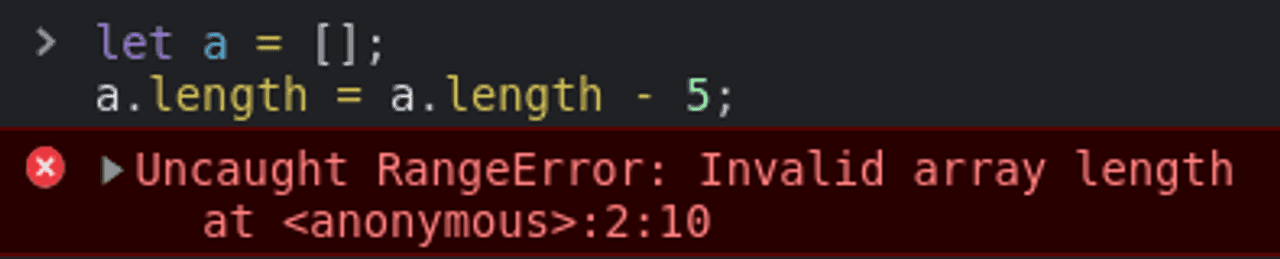
Эта ошибка возникает, если мы задаем массиву недопустимый размер: негативный или больше 232.
new Array(-10); // RangeError: Invalid array lengthlet a = [];
a.length = a.length - 5; // RangeError: Invalid array length
Для решения данной ошибки нам нужно использовать допустимую длину массива.
new Array(10); // [empty × 10]Полезные ссылки
JavaScript ссылки на ошибки
Ниже, вы найдёте список ошибок, которые возвращает JavaScript. Эти ошибки могут быть полезны при отладке, но неполадки не всегда сразу понятны. Страницы ниже предлагают дополнительную информацию об этих ошибках. Каждая ошибка это Объект на основании Error object, и имеет имя (name) и сообщение (message).

Эта ошибка возникает, если мы задаем массиву недопустимый размер: негативный или больше 232.
new Array(-10); // RangeError: Invalid array lengthlet a = [];
a.length = a.length - 5; // RangeError: Invalid array length
Для решения данной ошибки нам нужно использовать допустимую длину массива.
new Array(10); // [empty × 10]Полезные ссылки
JavaScript ссылки на ошибки
Ниже, вы найдёте список ошибок, которые возвращает JavaScript. Эти ошибки могут быть полезны при отладке, но неполадки не всегда сразу понятны. Страницы ниже предлагают дополнительную информацию об этих ошибках. Каждая ошибка это Объект на основании Error object, и имеет имя (name) и сообщение (message).
https://developer.mozilla.org/ru/docs/Web/JavaScript/Reference/Errors
Резюме
Надеюсь вы узнали что-то новое для себя. И сможете определять причину ошибок в JavaScript и способ их исправления. Эти ошибки могут возникать в рабочих проектах и лучше заранее иметь представление о них.
Спасибо, что прочитали. Буду вам очень признателен если поделитесь этой статьей!
Опубликовано 21 апреля 2021 г.

От автора: приветствую вас, друзья. Из этой небольшой статьи мы с вами узнаем, как увидеть и исправить ошибки JavaScript. Статья написана для начинающих изучение JavaScript.
При написании программы на любом языке программирования так или иначе не обходится без ошибок, которые необходимо уметь найти и исправить. В качестве примера давайте напишем простейшую программу, которая должна показать модальное окно:
В этой простейшей программе есть ошибка JavaScript, которую нам и нужно найти, поскольку с ней наш код не работает и модальное окно не показывается. Мало того, в JavaScript многие ошибки можно назвать фатальными, поскольку из-за них может прекратить работу не только ваш скрипт, но и сторонние библиотеки JavaScript до тех пор, пока ошибка не будет исправлена.

Профессия Frontend-разработчик PRO
Готовим Frontend-разработчиков с нуля
На курсе вы научитесь создавать интерфейсы веб-сервисов с помощью языков программирования и
дополнительных технологий. Сможете разрабатывать планировщики задач, мессенджеры, интернет-магазины…
Узнать подробнее
До 10 проектов в портфолио для старта карьеры
Подходит для новичков без опыта в программировании
Практика на вебинарах с разработчиками из крупных компаний
Что же поможет найти ошибки JavaScript? Консоль браузера. Здесь мы вкратце пройдемся по этому инструменту в различных браузерах, в частности это будет Firefox и Chrome. В обоих браузерах консоль есть из коробки.
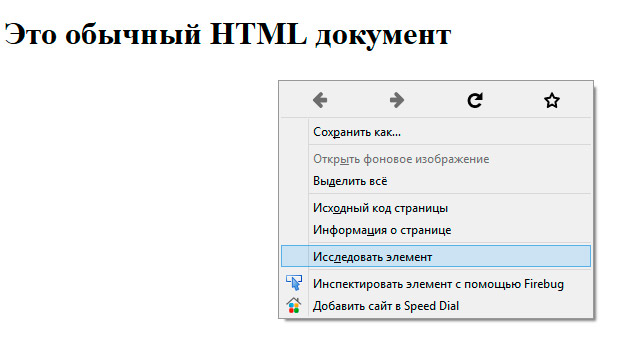
Начнем с Firefox. Для того, чтобы увидеть ошибку в нашем коде, необходимо открыть консоль браузера. Для этого кликаем в окне браузера правой кнопкой мыши и в контекстном меню выбираем пункт Исследовать элемент.
Внизу окна появится панель, в которой мы можем исследовать и отлаживать наш код. Полагаю, если вы верстали сайты, вы уже могли использовать этот инспектор кода для исследования верстки. Инструмент значительно упрощает жизнь верстальщика, даже и не представляю, как раньше верстали сайты без него 🙂
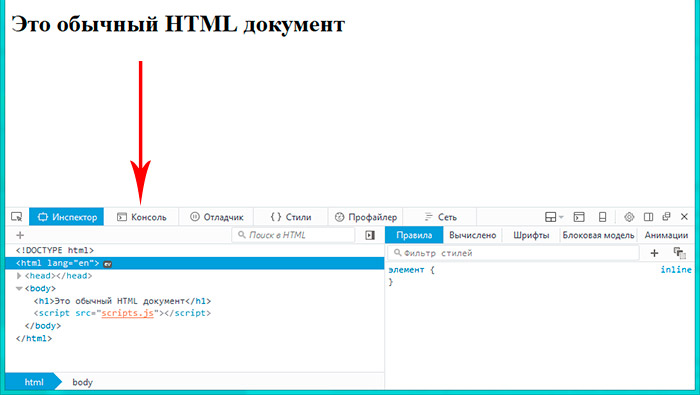
Итак, в открывшейся панели рядом со вкладкой Инспектор есть вкладка Консоль, она то нас и интересует. Переключимся на нее, еще раз обновим страницу и увидим все ошибки JavaScript. В нашем случае это всего одна синтаксическая ошибка, которая произошла в файле scripts.js на первой строке.
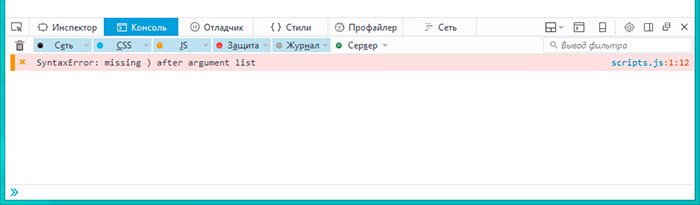
Нам остается лишь перейти в данный файл, заметить, что мы забыли заключить строку в кавычки и исправить эту ошибку:

Вот теперь ошибок нет и код успешно выполнился. Кроме встроенной консоли для Firefox можно отдельно установить расширение Firebug, которое, по сути, является аналогом. После установки Firebug можно вызвать, как и встроенную консоль, из контекстного меню или использовать для этого горячую клавишу F12. Вот таким образом выглядит Firebug:

Ну и консоль Хрома:

Она также вызывается из контекстного меню или клавишей F12.
Конечно, для исправления ошибки в единственной строке кода консоль зачастую не нужна. Но если кода десятки и сотни строк, тогда без консоли обойтись практически нереально. При этом в консоли можно не только смотреть ошибки, но и даже писать собственный JavaScript код, но это уже тема отдельной статьи.
Профессия Frontend-разработчик PRO
Готовим Frontend-разработчиков с нуля
На курсе вы научитесь создавать интерфейсы веб-сервисов с помощью языков программирования и
дополнительных технологий. Сможете разрабатывать планировщики задач, мессенджеры, интернет-магазины…
Узнать подробнее
До 10 проектов в портфолио для старта карьеры
Подходит для новичков без опыта в программировании
Практика на вебинарах с разработчиками из крупных компаний
На этом статья подошла к концу, теперь вы знаете, как найти в своем коде ошибки JavaScript и исправить их. Если вы хотите больше узнать о JavaScript, тогда рекомендую обратить свое внимание на уроки по JavaScript и отдельный курс по языку JavaScript. Удачи!
Websites use several different Website coding languages to work. All websites use HTML, CSS, and JavaScript to render the webpage to the visitor.
When the website is loading but the website is not displaying correctly, this is usually due to a coding error on the site. Usually this is caused by JavaScript or CSS errors. This article will focus on diagnosing JavaScript coding errors.
How do I know its a JavaScript problem?
JavaScript is used to make different behaviors happen on your site. These behaviors are all done through the Visitor of the sites browser. Examples of this are Image Slide Shows, Pop Up boxes, Menus, and more. When your website loads, but the behaviors on your site stopped working, this is usually because of the JavaScript code not working.
What happens when your JavaScript fails?
If you have JavaScript’s on your site that are not working you can diagnose them by using your browsers “Error Console“. Each browser has a built in “Error Console” for diagnosing scripting errors on your site. Below will show you how to check the “Error Console” in FireFox, Internet Explorer, Chrome, Opera, and Safari.
Diagnosing a JavaScript error
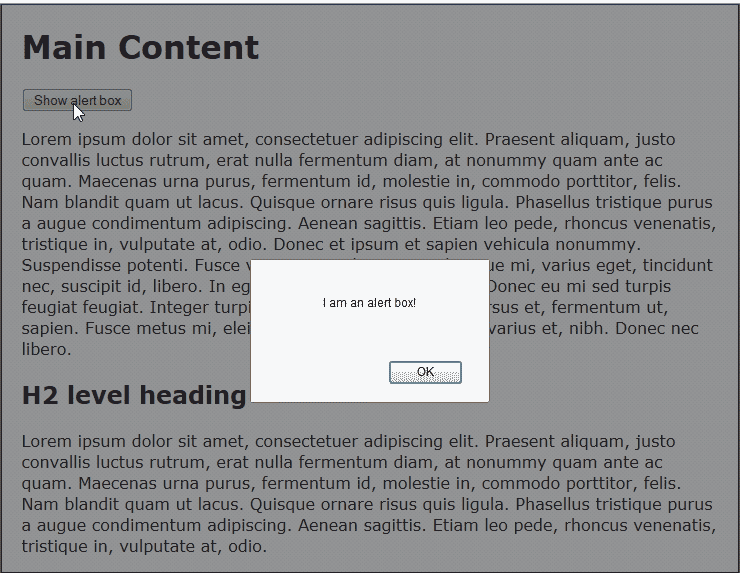
In order to explain how to diagnose a JavaScript error, we will use the simple “pop up” script below (Snapshot to the right shows what it does):
This script simply creates a pop up box that says “I am an alert box!“. We will break the script so that is causes an error by removing one of the quotes like the following.
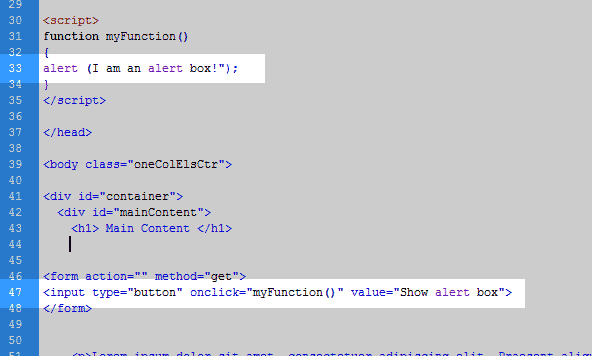
When the website is ran, the code will break where the quote is missing. The snapshot to the right shows the code that’s broken, and where the lines are in the code.
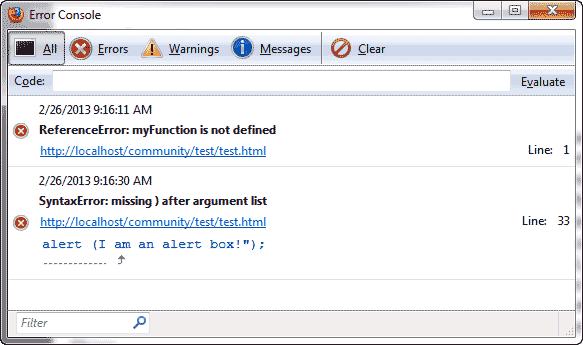
In this case Line 33 is broken. The methods below will show you how to find the lines of broken code through your browser.
Javascript console for FireFox
Using the code example from the “Diagnosing a JavaScript error” section above, We will find the JavaScript error using Firefox.
- Open FireFox.

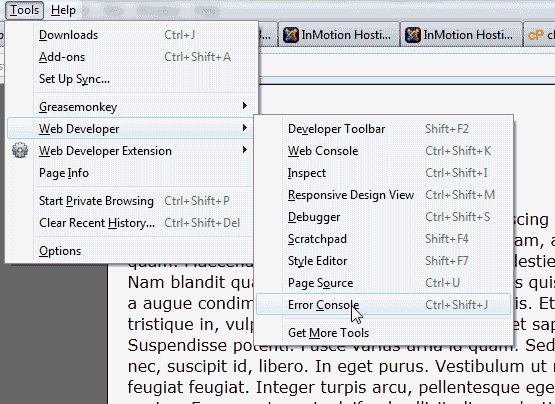
Go to Tools > Web Developer > Error Console. If you do not have Tools at the top you can use the following shortcut:
Ctrl + Shift + J
-
Visit the page with the error. In this case you will see the error on Line 33 in the FireFox Error Console. See image to the right.
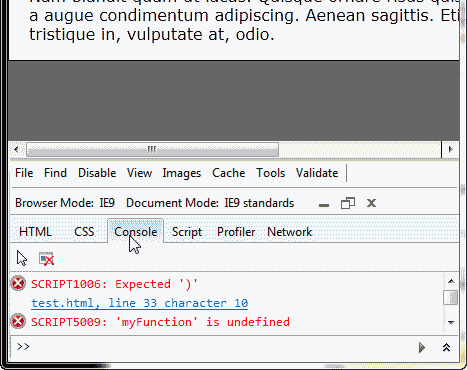
Javascript console for Internet Explorer
Keep in mind we are using the code example from the “Diagnosing a JavaScript error” section at the beginning of this article. Below is how to use the Error Console in Internet Explorer.
- Open Internet Explorer.
- Press the function key on your keyboard, F12.
-
Visit your webpage with the error. You will see the error with the line number of where the error occurs in the document in the bottom Error Console window. The snapshot to the right shows the error on line 33.
Javascript console for Chrome
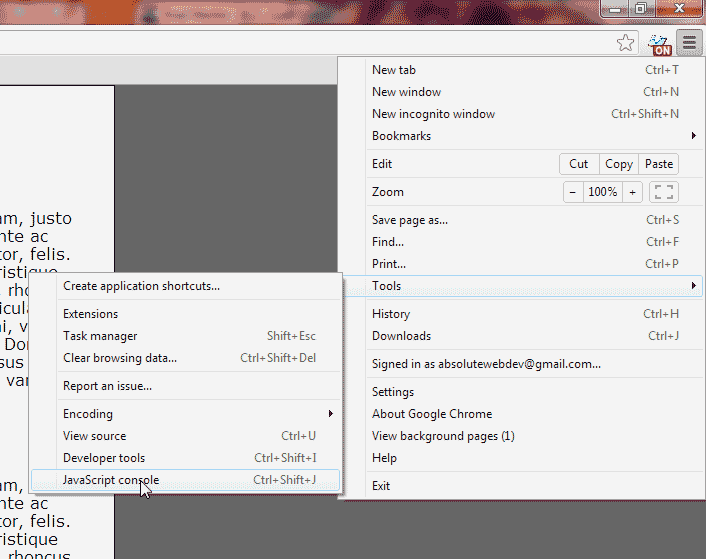
From the “Diagnosing a JavaScript error” section example towards the top, we will find the JavaScript error on a webpage in Google Chrome.
- Open Google Chrome.
- Click the “Customize and Control Google Chrome” button at the top right side.
-
From the drop menu, go to Tools > JavaScript console. Or you can press:
Ctrl + Shift + J
-
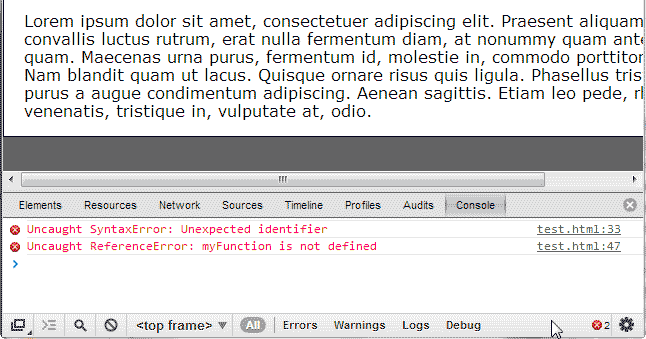
Visit the site with the error. In the Error Console window you will see the error show on line 33. See image to the right.
Javascript console for Opera
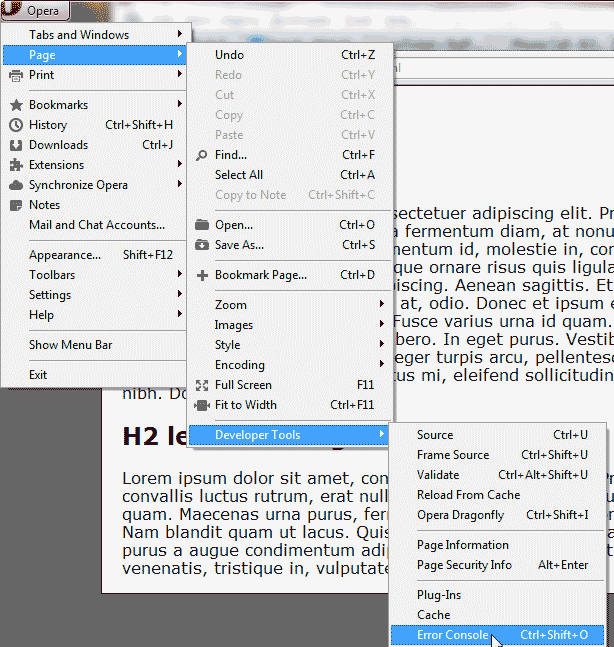
Continuing to diagnose the error from “Diagnosing a JavaScript error” section, we will find the JavaScript error on a webpage in Opera.
- Open Opera.
- Click the Opera button towards the top right.
-
Navigate to Page > Developer Tools > Error Console. Or you can press the following keyboard keys:
Ctrl + Shift + O
-
The Error Console will pop up. You can move the window to the side while you visit your site. You will see the errors list when you visit the site with the broken code. The image to the right shows the error on line 33.
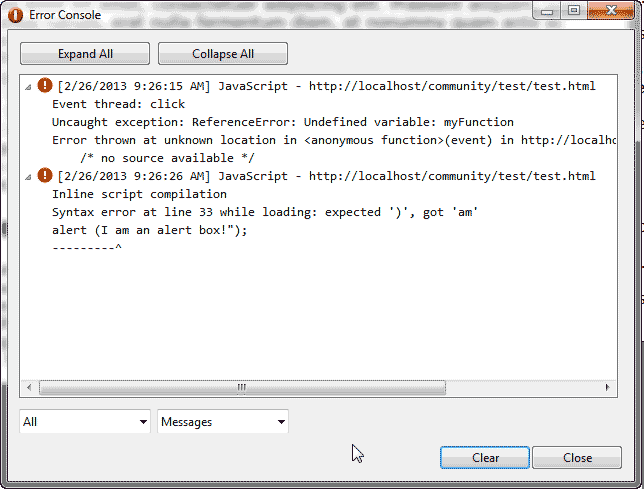
Javascript console for Safari
Continuing the previous example error from “Diagnosing a JavaScript error” section, We will look at the Error Console in Safari.
- Open up your Safari browser.
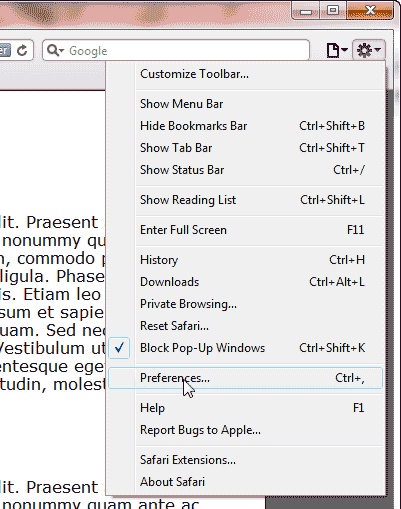
- Click the “Display a menu of general Safari settings” button towards the top right that looks like a gear.
-
Click Preferences.
-
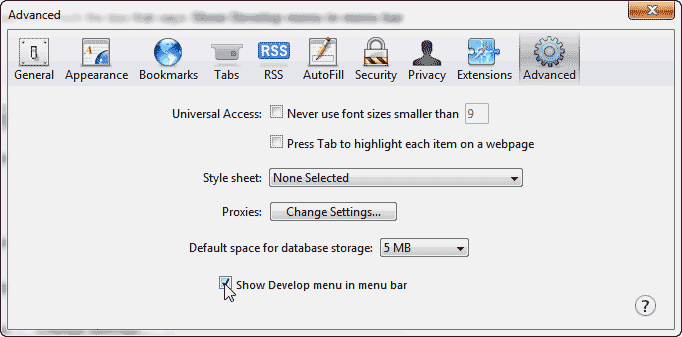
On the Advanced tab, make sure you have the “Show Develop menu in menu bar” box checked.
-
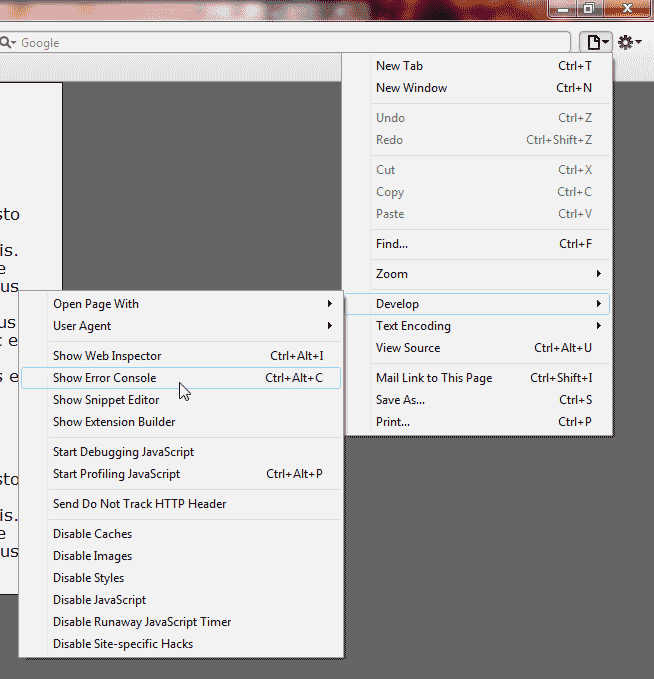
“Display a menu for the current page” icon towards the top right that looks like a paper with a bent corner.
Go to Develop > Show Error Console. Or you can press:
Ctrl + Alt + C
Â
-
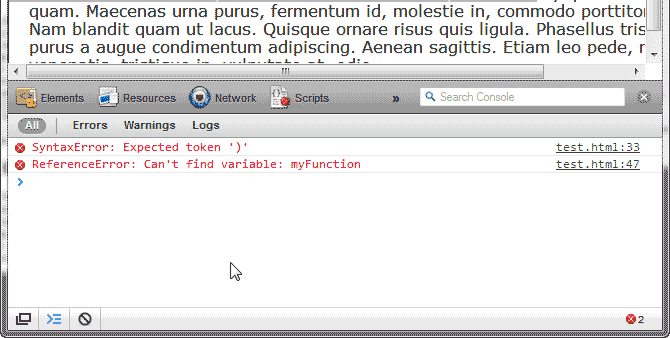
Visit your webpage that is broken and check the Error Console at the bottom. The errors will list when you refresh your browser. In this case you can see the error on line 33 in the snapshot to the right.