
На чтение 5 мин Просмотров 1.7к. Опубликовано 08.09.2022
В этом руководстве мы рассмотрим, как исправить ошибку Microsoft Store 0x803F8001 в Windows. Если вы пытаетесь загрузить, установить или обновить приложение или игру в Магазине Windows, то вы могли столкнуться с ошибкой 0x803F8001: » Проверьте свою учетную запись, приложение/игра в настоящее время недоступны в вашей учетной записи», или просто » Что-то пошло не так «.
Независимо от того, какое сообщение об ошибке вы получили, это может раздражать, поскольку вы хотите просто продолжить установку или обновление приложения/программы. К счастью, есть несколько вещей, которые можно сделать, чтобы исправить это на вашем компьютере или ноутбуке с Windows.
Магазин Microsoft Store в Windows 10/11 используется для покупки, установки и обновления программ и игр. Вы даже можете приобретать фильмы и сериалы! Однако это невозможно при получении ошибки 0x803F8001. Поэтому ниже мы собрали различные методы, которые вы можете использовать для устранения этой ошибки и восстановления работы Магазина Windows.
Содержание
- Что вызывает ошибку Microsoft Store 0x803F8001?
- Как исправить ошибку Microsoft Store 0x803F8001
- Устранение 1: Обновление Windows
- Исправление 2: Дата и время
- Fix 3: Местоположение
- Устранение 4: Выйдите
- Устранение 5: Сброс
- Правила 6: Восстановление
- Fix 7: Кэш магазина
- Исправление 8: Прокси
- Устранение 9: Переустановка магазина
- YouTube video: Устранение: Ошибка Microsoft Store 0x803F8001
Что вызывает ошибку Microsoft Store 0x803F8001?
Многие вещи могут вызвать этот код ошибки в Windows 10 или Windows 11. Например, это может быть связано с тем, что не установлены последние обновления для Windows, выбрана неправильная дата и часовой пояс или даже поврежден один из файлов магазина.
Эта ошибка 0x803F8001 часто встречается при попытке использовать Minecraft Launcher, но может произойти в любое время в магазине.
В сообщении обычно говорится:
» Проверьте свою учетную запись, приложение/игра в настоящее время недоступны в вашей учетной записи. Убедитесь, что вы вошли в Магазин, и попробуйте снова. Вот код ошибки, если он вам нужен: 0x803F8001 .»
Как исправить ошибку Microsoft Store 0x803F8001
Ниже перечислены различные методы, которые должны заставить Microsoft Store снова работать на вашем компьютере с Windows 10 или 11. Вам нужно будет выполнять каждый метод, пока один из них не устранит ошибку.
Устранение 1: Обновление Windows
Сначала убедитесь, что Windows обновлена, это поможет решить многие проблемы.
Windows 10:
- Щелкните правой кнопкой мыши на стартовом меню Windows и откройте Настройки
- Перейдите к Настройкам обновления и безопасности , а затем нажмите Проверить наличие обновлений

Windows 11:
- Откройте Настройки , щелкнув правой кнопкой мыши на меню Пуск
- Выберите Windows Update слева, а затем Проверьте наличие обновлений
Исправление 2: Дата и время
Проверьте, правильно ли выбраны дата и часовой пояс. В противном случае могут возникнуть проблемы при попытке загрузки из Microsoft Store:
- Щелкните правой кнопкой мыши часы на панели задач > перейдите в Adjust date/time
- Проверьте правильность даты и времени
- Если нет, переключите Set the time automatically на Off
- Теперь нажмите кнопку Change под Set the time and date manually и выберите правильные цифры > Нажмите Change
- Затем проверьте, что ваш Time Zone правильный
- Если это не так, то переключите Set the time zone automatically на Off
- Затем выберите правильный часовой пояс из выпадающего меню
Fix 3: Местоположение
Попробуйте включить местоположение в настройках Windows:
- Щелкните правой кнопкой мыши меню Пуск и выберите Настройки
- Теперь нажмите Приватность затем выберите Местоположение
- Переключите Местоположение для этого устройства на Вкл, нажав кнопку Изменить
Устранение 4: Выйдите
Выйдите из Microsoft Store, а затем снова войдите в учетную запись, под которой было приобретено приложение, игра или фильм, который вы пытаетесь загрузить или установить.
Устранение 5: Сброс
Сброс Microsoft Store приведет к сбросу всех настроек, поэтому, если возникла проблема с настройками или файлами магазина, это исправит ее:
- Щелкните правой кнопкой мыши меню пуск Windows > Apps and Features
- В строке поиска введите Microsoft Store
- Выберите Microsoft Store и нажмите Дополнительные параметры
- Выберите кнопку Сброс
Правила 6: Восстановление
Как и выше, запуск восстановления Магазина позволит проверить отсутствие проблем с файлами Магазина Windows:
- Щелкните правой кнопкой мыши меню пуск Windows > Apps and Features
- В поле поиска введите Microsoft Store
- Выберите Microsoft Store и нажмите Дополнительные параметры
- Выберите кнопку Repair
Fix 7: Кэш магазина
Очистите файлы кэша Microsoft Store, так как они также могут вызывать множество проблем:
- Откройте меню пуск Windows > Введите wsreset
- Теперь нажмите на wsreset
- Разрешите запустить > После завершения перезагрузите ПК
Исправление 8: Прокси
Если вы используете прокси в Windows, попробуйте отключить его, так как это может быть причиной:
- Откройте меню Пуск > Поиск Опции Интернета затем откройте его
- Выберите вкладку Подключения
- Удалите все настройки прокси
Устранение 9: Переустановка магазина
Если ни один из вышеперечисленных методов не помог, то следующее, что нужно попробовать, это переустановить Microsoft Store:
- Откройте PowerShell в меню Пуск от имени администратора
- Скопируйте приведенный ниже код в PowerShell и нажмите enter :
3397
Мы надеемся, что приведенное выше руководство помогло вам исправить ошибку Microsoft Store с кодом ошибки 0x803F8001, и теперь вы можете продолжить установку или обновление приложения или игры, с которыми у вас были проблемы.
Если вам понравилось это руководство и вы нашли его полезным, мы уверены, что вам понравятся и другие наши руководства по Windows.
YouTube video: Устранение: Ошибка Microsoft Store 0x803F8001
Посмотрите наши последние руководства:
- Disney Dreamlight Valley Co-op
- Fix: Microsoft Store Error 0x803F8001
- Fix: Microsoft Store Error 0x00000194 Page could not be loaded
- Temtem Co-op Not Working
- Disney Dreamlight Valley Crashing (Switch/Xbox/PS/PC)
.
The Microsoft Store on Windows 11 is set to become the ultimate destination for downloading millions of apps, including Android apps. This revamped MS Store will definitely mark as the milestone of the next generation Operating System. But some Windows 11 users point to ‘Error Code: 0x803F8001’ in apps downloaded from the Microsoft Store, and they are looking for a solution.
We have listened to the issue and sorted out some solutions for the same. Our analysis found several common reasons triggering the ‘Error Code: 0x803F8001’ in the Microsoft Store, such as account glitch, false Store installation, temporary files, and many more. If you are also suffering from the same issue, then follow this article to get the most out of it. Let’s have a look,
Fix 1: Sign in again into the Microsoft Store:
As a first resort to deal with the ‘Error Code: 0x803F8001’ in Microsoft Store on Windows 11 is sign out from the MS Store and sign in again after a few seconds. We have studied that the prime cause of this issue is account synchronization. So you need to disconnect from your Microsoft account from the MS Store temporarily,
To do so,
- Firstly, go to the Microsoft Store and click on the Account icon from the right top corner of the window.
- Then click on the Sign out option from the drop-down menu.
- Now restart the system and wait for a few seconds.
- Again open Microsoft Store and go to the Account icon (top right corner).
- Then click on the Sign-in option and sign in with your account credentials.
- Once done, the said error might get resolved for you.
Fix 2: Repair Microsoft Store:
Another possible cause for the ‘Error Code: 0x803F8001’ in Microsoft Store is corrupted temporary files or faulty dependency. Here the best possible solution is to repair the entire suite. If it doesn’t help you, then reset it. To do so,
- Firstly, press Windows + I to launch the Settings app.
- Then in the search box, type Apps and click on Add and remove programs option from the sub-menu.
- Now from the list of apps, select Microsoft Store and then click on the three-dot beside the option.
- Then click on Advanced options from the drop-down menu.
- In the newly opened screen, click on the Repair button under the Reset section.
- Once done, check for improvement. If the error persists, then again go to Advanced options and click on the Reset button.
- Once the Reset process gets completed, restart the System and check the said issue is resolved or not.
Fix 3: Run Windows Store Troubleshooter:
As per some suffered users, they managed to get rid of the ‘Error Code: 0x803F8001’ in Microsoft Store in Windows 11 by running Windows Store troubleshooter. So here we strongly recommend you can apply the same trick in your case also. To do so,
- Firstly, click on the Start button and select the Settings app.
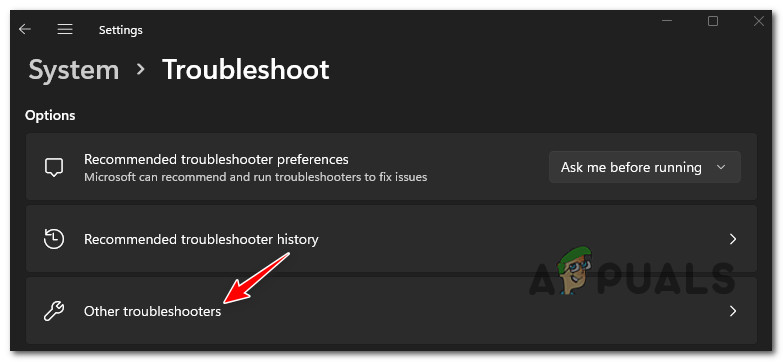
- Then select System and click on Troubleshoot from the right side of the screen.
- Now click on the Other troubleshooters option.
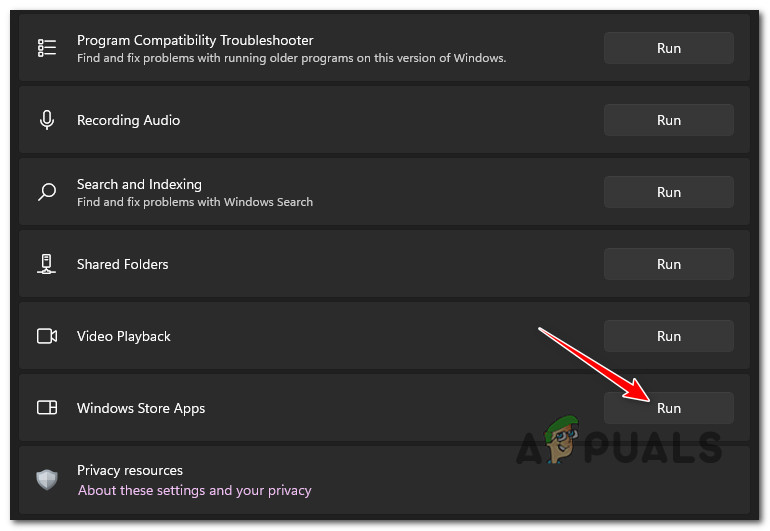
- Then select Windows Apps troubleshooters (Windows Store Apps) and click on the Run button beside the option.
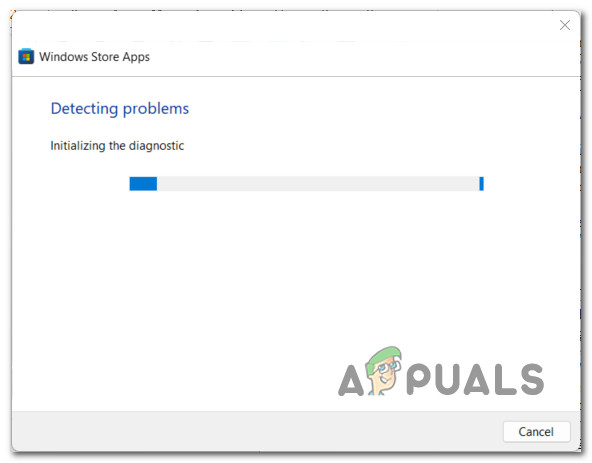
- Once done, let the process complete on its own. Then restart the system and check for improvement.
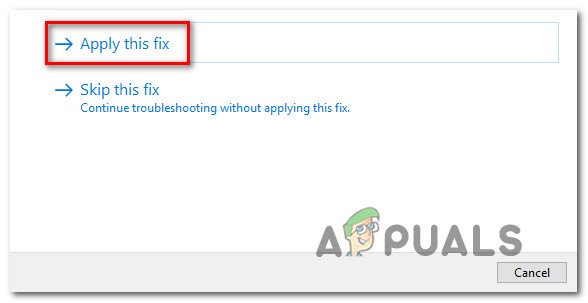
- The System will start scanning, and there find any corrupted files, it will ask for permission to repair it; then click on Apply this fix option.
- Now the said issue will get resolved for you; if not, then move to the next fix.
Fix 4: Run SFC and DISM Scan:
Another solution to tackle the ‘Error Code: 0x803F8001’ in Microsoft Store on Windows 11 is running SFC and DISM scan. This tool will detect and repair system files automatically. To do so,
- Firstly, in the search bar, type cmd and open Command Prompt with administrative access.
- Inside the Command Prompt window, type or copy then paste the following command and then press Enter,
SFC /scannow
- Once the scanning process gets completed, again type the following command and then press Enter,
Dism /Online /Cleanup-Image /RestoreHealth
- Let the process complete on its own, then restart the system and check whether the said issue is resolved.
Fix 5: Reinstall Microsoft Store:
If any of the above solutions do not help you, then you can reinstall the MS store. To do so,
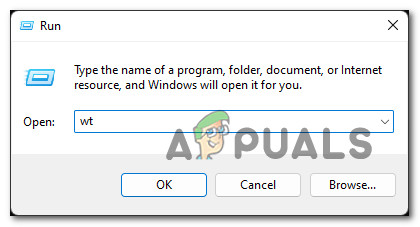
- Firstly, press Windows + R simultaneously to launch the Run dialog box, then type wt and press Ctrl + Shift + Enter. This time the Windows Terminal window will open before you with administrative access.
- If User Account Control (UAC) appears before the screen, click on Yes.
- Then inside the Windows Terminal app, type the following command and then press Enter to uninstall Windows Store functionality from your System.
Get-AppxPackage -allusers *WindowsStore* | Remove-AppxPackage
- Now restart the system; when your system boots back, go to the same Windows Terminal app with administrative access and type the following command and press Enter to reinstall Microsoft component, Get-AppxPackage -allusers *WindowsStore* | Foreach {Add-AppxPackage -DisableDevelopmentMode -Register “$($_.InstallLocation)AppXManifest.xml”}
- Once done, again restart the system and check for improvement.
So you can bypass the ‘Error Code: 0x803F8001’ in the Microsoft Store on Windows 11 by following any of the solutions listed above. In addition to all these solutions, you can perform a repair installation to reinstall all components of your Windows 11 installation without losing data. If you have any queries or doubts after reading this article, please leave a comment in the below comment box.
Вы недавно обновили свою систему Windows 10 до последней сборки, но при попытке обновить приложения в Магазине Windows выдает ошибку с кодом ошибки 0x803F8001. Эта ошибка обычно возникает из-за того, что некоторые обновления Windows содержат ошибки, которые могут повлиять на определенные обновления приложений. Это распространенная ошибка, из-за которой вы расстраиваетесь, когда происходит сбой обновления приложения.
Тем не менее, мы собрали несколько решений, основанных на опыте пользователей в Интернете, которые могут помочь вам решить проблему. Это испытанные и протестированные разными пользователями методы, которые могут помочь вам обновить и установить нужное вам приложение. Попробуйте приведенные ниже методы, чтобы исправить код ошибки Microsoft 0x803F8001 на вашем ПК с Windows 10, и посмотрите, работают ли они.
Способ 1 — Подтвердить учетную запись
1. Нажмите клавишу Windows + I вместе, чтобы открыть настройки.
2. Теперь нажмите «Учетные записи».
3. Теперь перейдите в свою учетную запись и попробуйте найти вариант подтверждения.
Если есть вариант подтверждения, просто нажмите на него и подтвердите свою учетную запись. Теперь попробуйте еще раз.
Этот метод помогает очистить кеш магазина Windows и сбросить его перед повторной регистрацией магазина. Давайте посмотрим, как очистить кеш:
Шаг 1. Перейдите в «Пуск» и введите «Командная строка» в строке поиска Windows.
Шаг 2: Щелкните правой кнопкой мыши результат и выберите «Запуск от имени администратора», чтобы открыть командную строку с правами администратора.
Шаг 3: В окне командной строки (администратора) введите приведенную ниже команду и нажмите Enter:
WSReset.exe
Подождите 30 секунд, пока командная строка не закроется автоматически.
После закрытия командной строки приложение Microsoft Store открывается автоматически по завершении сброса.
Способ 3: использование команды powershell
Скорее всего, ошибка 0x803F8001 появляется из-за сбоя связи с серверами, и, следовательно, в таких случаях вы можете перерегистрировать Магазин Windows и посмотреть, решит ли он проблему.
1. Найдите powershell в окне поиска Windows 10.
2. Щелкните правой кнопкой мыши и выберите «Запуск от имени администратора».
3. Теперь выполните следующие команды одну за другой.
Просто скопируйте команду, вставьте ее в окно powershell, нажмите клавишу ввода. Подождите некоторое время, чтобы выполнить его полностью.
Get-AppXPackage | Foreach {Add-AppxPackage -DisableDevelopmentMode -Register "$($_.InstallLocation)AppXManifest.xml"}
Теперь скопируйте другую команду, указанную ниже, и выполните ее.
Get-AppXPackage *WindowsStore* -AllUsers | Foreach {Add-AppxPackage -DisableDevelopmentMode -Register "$($_.InstallLocation)AppXManifest.xml"}
* Примечание. Убедитесь, что вы копируете и вставляете приведенную выше команду как есть, а не вводите ее, что приведет к любым ошибкам опечатки, которые могут в конечном итоге вызвать больше проблем.
После завершения процесса выйдите из окна командной строки и попробуйте обновить приложение Store, при обновлении которого у вас ранее возникали проблемы. Теперь все должно работать нормально.
Способ 4: разрешить приложениям использовать ваше местоположение
Это было одно из решений, которое помогло мне решить проблему с одним из приложений Магазина. Всякий раз, когда я пытался установить приложение, установка завершалась ошибкой, и Microsoft Store возвращал код ошибки — 0x803F8001. К моему удивлению, включение определения местоположения для этого устройства каким-то образом решило эту проблему. Следуйте приведенным ниже инструкциям, чтобы разрешить приложениям использовать ваше местоположение:
Шаг 1: Перейдите в «Пуск», нажмите на него и выберите «Настройки» (значок шестеренки).
Шаг 2: В приложении «Настройки» перейдите в «Конфиденциальность».
Шаг 3: Затем в левой части панели прокрутите вниз и в разделе «Разрешения приложения» нажмите «Расположение».
Шаг 4. Теперь перейдите в правую часть окна и в разделе «Разрешить доступ к местоположению на этом устройстве» нажмите кнопку «Изменить».
Шаг 5. Во всплывающем окне «Доступ к местоположению для этого устройства» переместите ползунок вправо, чтобы включить его.
Шаг 6. Теперь перейдите в раздел «Разрешить приложениям доступ к вашему местоположению» и переместите ползунок вправо, чтобы включить его.
Закройте приложение настроек и попробуйте загрузить или обновить приложение Store, и в дальнейшем проблем не должно возникнуть.
Способ 5. Повторите попытку обновления или загрузки после удаления и повторной установки приложения.
Некоторые пользователи могут решить эту проблему, сначала удалив определенные приложения из магазина, а затем повторно установив приложения из Магазина Microsoft. Чтобы узнать, как удалить приложения Microsoft Store, следуйте приведенным ниже инструкциям.
Шаг 1: одновременно нажмите клавиши Win + I на клавиатуре, чтобы запустить приложение «Настройки».
Шаг 2: В приложении «Настройки» нажмите «Приложения».
Шаг 3: Откроется окно «Приложения и функции».
Перейдите к правой стороне окна и в разделе «Приложения и функции» введите имя приложения Store в поле поиска.
Например, мы хотели найти приложение Spotify.
Выберите приложение и нажмите «Удалить».
Теперь подождите, пока приложение будет удалено. После полного удаления заново установите его из Магазина Microsoft.
Способ 6: отключить прокси
Иногда вам может не удаться загрузить или обновить приложение Store, поскольку вы используете прокси-соединение. Вполне вероятно, что прокси-соединение блокирует процесс загрузки или обновления, и, следовательно, вы сталкиваетесь с ошибкой 0x803F8001. Просто выполните следующие шаги, чтобы отключить прокси:
Шаг 1: Нажмите одновременно клавиши Win + R на клавиатуре, чтобы открыть окно команды «Выполнить».
Шаг 2: В поле поиска введите inetcpl.cpl и нажмите Enter, чтобы открыть диалоговое окно свойств Интернета.
Шаг 3: В диалоговом окне «Свойства Интернета» перейдите на вкладку «Подключения» и нажмите кнопку «Настройки локальной сети».
Шаг 4: В окне «Настройки локальной сети» перейдите в раздел «Прокси-сервер» и снимите флажок «Использовать прокси-сервер для вашей локальной сети».
Нажмите OK, чтобы сохранить изменения и вернуться в окно свойств Интернета.
Шаг 5: Здесь снова нажмите OK, чтобы применить изменения и выйти.
Теперь вернитесь и попробуйте обновить приложение Магазина, которое показывало ошибку, и оно больше не должно показывать код ошибки 0x803F8001.
Способ 7: запустить сканирование SFC
Бывают случаи, когда вы не можете загрузить или обновить приложение Магазина Windows, потому что системные файлы повреждены. В этом случае вы можете запустить проверку системных файлов, чтобы найти любой поврежденный файл и восстановить его. Давайте посмотрим, как:
Шаг 1: Щелкните правой кнопкой мыши меню «Пуск» и выберите «Выполнить», чтобы открыть командное окно «Выполнить».
Шаг 2. В командном окне «Выполнить» введите cmd в поле поиска и одновременно нажмите клавиши Ctrl + Shift + Enter на клавиатуре, чтобы открыть командную строку с повышенными привилегиями.
Шаг 3: В окне командной строки (администратора) выполните следующую команду:
sfc /scannow
Теперь подождите, пока процесс не завершится, так как это занимает некоторое время. Он просканирует все ваши системные файлы и, если будут обнаружены поврежденные файлы, восстановит их на месте.
После завершения процесса сканирования и восстановления закройте окно командной строки и перезагрузите компьютер.
Теперь вы можете продолжить загрузку или обновление уязвимого приложения Store.
Способ 8: используйте инструмент DISM
Встроенный инструмент DISM (Обслуживание образов развертывания и управление ими) — еще один очень полезный инструмент Windows, который может помочь решить проблему с загрузкой или обновлением в приложении Microsoft Store:
Шаг 1: Нажмите горячую клавишу Win + X и нажмите «Выполнить».
Шаг 2. В поле поиска «Выполнить команду» введите cmd, а затем нажмите сочетание клавиш Ctrl + Shift + Enter, чтобы открыть командную строку в режиме администратора.
Шаг 3: Скопируйте и вставьте приведенную ниже команду в окно командной строки и нажмите Enter:
dism.exe /online /Cleanup-Image /StartComponentGroup
Этот процесс также занимает несколько минут, поэтому подождите, пока он не закончится. После этого выйдите из окна командной строки и перезагрузите компьютер. Теперь вы сможете загрузить или обновить приложение Store.
Способ 9: проверьте настройки языка и региона
Возможно, настройки языка и региона в вашей системе Windows 10 настроены неправильно, и, следовательно, это может создать множество проблем, включая ошибку обновления приложения Store. Поэтому вы должны проверить, все ли в порядке с настройками языка и региона:
Шаг 1: одновременно нажмите клавиши Win + I на клавиатуре, чтобы открыть приложение «Настройки».
Шаг 2: В приложении «Настройки» нажмите «Время и язык».
Шаг 3: Затем в левой части окна нажмите «Регион».
Шаг 4. Теперь в правой части окна в разделе «Региональный формат» убедитесь, что в поле текущего формата установлено значение «Английский (США)».
Если нет, то установите его на английский (США).
Теперь закройте окно «Настройки» и попробуйте загрузить или обновить приложение «Магазин», и у вас не должно возникнуть никаких проблем в дальнейшем.
Способ 10: сброс Магазина Windows
Когда все вышеперечисленные методы не работают, вы можете попробовать сбросить настройки Магазина Windows. Это помогает исправить любые проблемы с приложением, которые могут вызывать ошибку 0x803F8001. Выполните следующие шаги, чтобы сбросить Microsoft Store:
Шаг 1. Перейдите в меню «Пуск» и введите «Приложения и функции» в строке поиска Windows.
Шаг 2: Нажмите на результат, чтобы открыть окно «Приложения и функции» в приложении «Настройки».
Теперь перейдите в правую часть окна и в разделе «Приложения и функции» найдите Microsoft Store.
*Примечание. Вы также можете ввести Microsoft Store в поле поиска, чтобы сузить область поиска.
Шаг 3: Выберите приложение Microsoft Store в списке и нажмите «Дополнительные параметры».
Шаг 4: В следующем окне перейдите в «Сброс» и нажмите кнопку «Сброс».
Шаг 5: Во всплывающем окне снова нажмите кнопку «Сброс», чтобы подтвердить действие.
Теперь Windows продолжит сбрасывать Магазин. После этого повторно запустите приложение Microsoft Store, и теперь вы сможете загрузить или загрузить приложение Store.
Способ 11: запустить автоматическое восстановление
Хотя автоматическое восстановление в основном предпочтительнее, когда ваша система Windows 10 не загружается, не запускается или часто дает сбой, даже если она запускается, вы также можете запустить автоматическое восстановление, когда определенное приложение продолжает давать сбой или имеет проблемы с работой, и ни один из Вышеупомянутые методы помогают решить проблему. Давайте посмотрим, как запустить автоматическое восстановление:
*Примечание. Поскольку проблема не в системе, и ваша система запускается нормально, вы можете следовать приведенным ниже инструкциям.
Шаг 1: Щелкните правой кнопкой мыши «Пуск» и выберите «Настройки», чтобы открыть окно «Настройки».
Шаг 2: В окне «Настройки» нажмите «Обновление и безопасность».
Шаг 3: Затем нажмите «Восстановление» в левой части панели.
Шаг 4. Теперь перейдите вправо, прокрутите вниз и в разделе «Расширенный запуск» нажмите кнопку «Перезагрузить сейчас».
Шаг 5: Теперь ваш компьютер перезагрузится в расширенном режиме запуска.
Здесь, на экране «Выберите вариант», выберите «Устранение неполадок».
Шаг 6: Затем выберите «Дополнительные параметры», а затем выберите «Автоматическое восстановление/восстановление при загрузке».
Теперь ваш компьютер начнет ремонт. Процесс занимает несколько минут, поэтому дождитесь успешного перезапуска системы.
После завершения процесса восстановления запустите Microsoft Store и попробуйте загрузить или обновить приложение. Теперь все должно работать нормально.
Кроме того, вы также можете временно отключить стороннее антивирусное или защитное программное обеспечение в своей системе и посмотреть, решит ли это проблему. Это связано с тем, что иногда антивирус может блокировать приложения, считая их небезопасными, и, следовательно, отключение антивируса на некоторое время может решить проблему.
Кроме того, вы также можете использовать VPN для блокировки любых веб-сайтов или сторонних файлов cookie, которые могут отслеживать ваши привычки просмотра. Это может помочь решить множество проблем, в том числе ошибку обновления в приложении Store.
Early Windows 11 adopters are facing a recurring issue where apps downloaded from the new Windows Store interface hang before eventually showing the 0x803F8001 error. In most cases, the error message accompanied by the error code is ‘*App* is currently not available in your account.
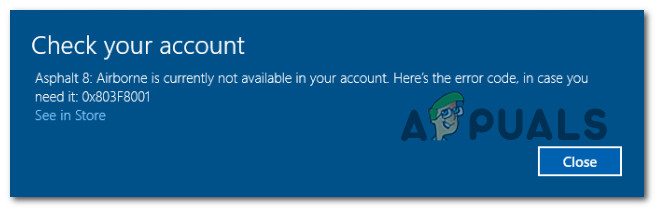
We’ve investigated this issue thoroughly and analyzed various user reports and it turns out that several common scenarios might be triggering this Windows 11 error code. Here’s a list of possible culprits that might cause the 0x803F8001 error code:
- Microsoft account glitch – As it turns out, this particular error is sometimes related to an inconsistency related to the Microsoft account that is currently connected to the Windows Store. In some cases, you can resolve the problem simply by signing out of your Microsoft account before rebooting your Windows 11 PC and signing back in.
- Generic inconsistency – It’s not uncommon to see this problem occurring due to an inconsistency that Microsoft is already aware of and has already developed an automated repair method for it. To test this theory, you should run the Windows Store Troubleshooter and see if one of the automated fixes can resolve the issue for you.
- Corrupted Windows Store temporary files – Temporary files that the Windows Store keeps accumulating as you install new apps and games from the store can also lead to this issue. In certain circumstances, you can fix the error code by triggering a repair or reset procedure using the Advanced Settings menu of the Windows Store.
- Corrupted Windows Store installation – If you tried installing the old version of Windows Store on a Windows 11 computer, this might have the unexpected consequence where the installation of this component might become corrupted. In this case, you can run a PowerShell command from an elevated Windows Terminal prompt to force the reinstallation of the Windows Store.
- System File Corruption – In more serious circumstances, you can expect to see this problem occurring due to certain dependencies used by Windows Store having become affected by system corruption. In this case, you can try doing SFC and DISM scans and even think about doing an in-place upgrade if it comes to it.
Now that you are familiar with every potential scenario that might cause this problem with the new Windows Store version on Windows 11, let’s go over the various methods that other affected users have successfully used to fix the issue:
Sign Out and back in again from Windows Store
As it turns out, one of the most common scenarios that will cause this particular issue is an account sync problem. There’s no official explanation on why this is occurring, but some affected users have discovered that in their case, the issue was produced by a Microsoft account glitch.
So before trying anything else, our recommendation is to take the time and temporarily disconnect your Microsoft account from the Windows Store.
You can do this by opening the new Microsoft Windows interface and clicking on your account icon on the top-right screen. Next, click on the Sign Out hyperlink from the context menu that just appeared.
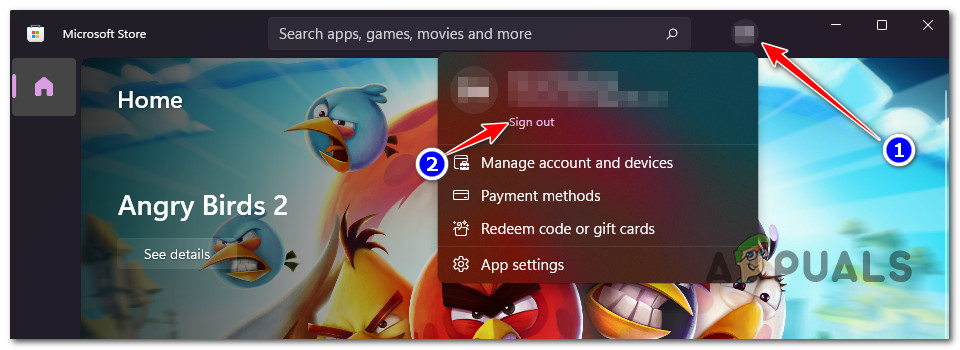
Once you have successfully signed out of your account, reboot your computer and wait for the next startup to complete.
After your PC boots back up, open the Windows Store once again and click on the same account icon (top-right corner), but this time click on Sign in from the context menu.
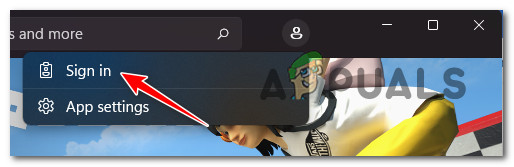
Next, provide the required credentials to sign in with the same account that you were previously using and see if the 0x803F8001 error is now fixed.
In case you’re still dealing with the same kind of problem, move down to the next potential fix below.
Run the Windows Store Troubleshooter
Keep in mind that the suite of built-in troubleshooting utilities available on Windows 11 is much more efficient than they were on previous versions of Windows.
If you’re dealing with a common glitch or inconsistency related to the Windows Store that Microsoft is already aware of, you can assume that the Windows Store Troubleshooter is capable of automatically resolving certain instances where this 0x803F8001 error code appears.
Note: The Windows Store Troubleshooter contains a selection of automated repair strategies (most of them can be applied with one click) that the utility is capable of deploying if a recognizable malfunctioning scenario is found.
If you haven’t tried to fix this issue by running the Windows Store Troubleshooter yet, follow the instructions below:
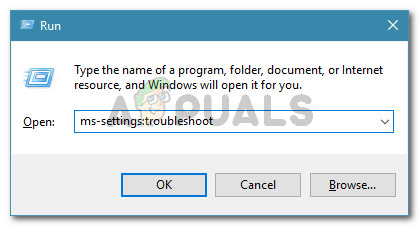
- Open up a Run dialog box by pressing Windows key + R. Inside the dialog box, type ‘ms-settings:troubleshoot‘, then press Enter to open up the Troubleshooting tab of the Settings app.

Accessing the Troubleshooting tab - Once you’re inside the Troubleshoot tab, click on Other troubleshooter from the bottom of the screen.

Open up the other troubleshooter first - Once you’re inside the Other Troubleshooters page, scroll down to the bottom of the screen and click on the Run button associated with Windows Apps Troubleshooter (under Others).

Running the Windows Store apps troubleshooter - Wai until the initial scan is complete – the tool will begin analyzing the entire Windows Store component to figure out if any of the repair strategies included with the Windows Store Apps troubleshooter are applicable.

Running the Windows Store App troubleshooter - If a viable scenario is identified, click on Apply this fix and wait until the repair strategy is applied.

Applying the fix Note: Keep in mind that certain repair strategies will require you to do some manual steps. If this happens, follow the on-screen instructions to enforce the recommended fix.
- After the recommended Windows Store Apps troubleshooter fix has been applied, reboot your Windows 11 computer and see if the problem is now fixed.
In case you’re still encountering the 0x803F8001 error code, move down to the next potential fix below.
Repair or Reset the Windows Store app
As it turns out, this particular issue can also be related to some kind of corrupted temporary files or dependencies that the Windows Store has been accumulating. Remember that Windows 11 features a new version of the Windows Store app, so inconsistencies, glitches, and malfunctions are to be expected.
Generally, if the root cause of the 0x803F8001 error is caused by temporary file data or a corrupted dependency, the way to fix both is to initially try and repair the entire suite before moving down to a reset procedure.
If you’re looking for step by step instructions on enforcing both of these procedures, follow the guide below:
- Press Windows key + I to open up the Settings menu on Windows 11.
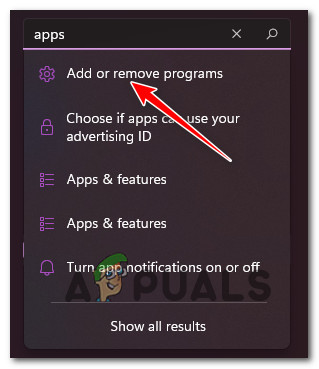
- Once you’re inside the root directory of the Settings menu, use the search function in the top-left corner to search for ‘apps’, then click on Add and Remove Programs from the suggestion context menu.

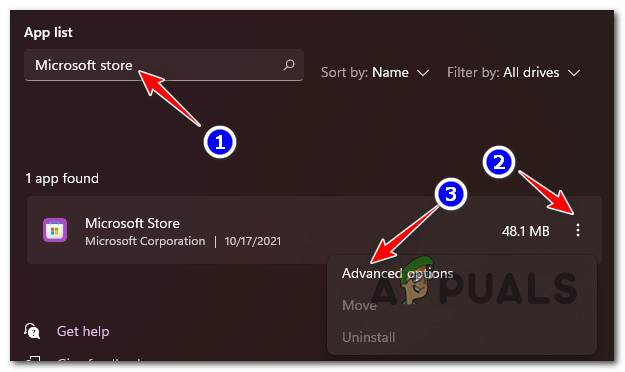
Access the Add and Remove Programs window - Once you’re inside the correct window, move over to the right-hand side menu and use the search function (under App List) to search for ‘Microsoft Store’.
- Next, from the list of results, click on the action button associated with Microsoft Store and select Advanced Settings from the context menu.

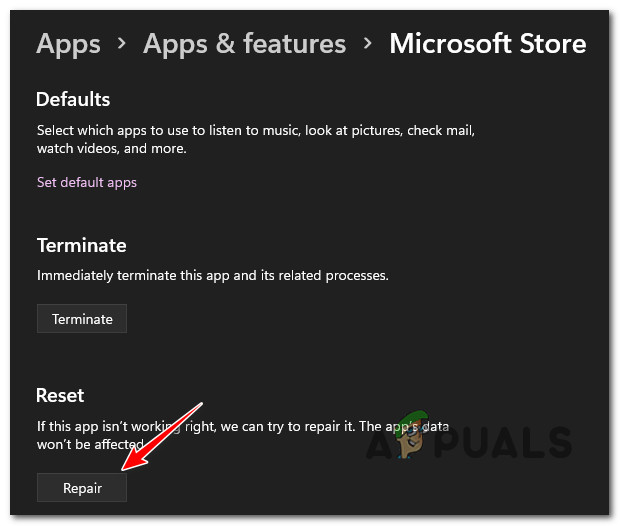
Accessing the Advanced Options menu - Next, scroll down to the Reset section and click the Repair button. When asked to confirm, click on Repair once again.

Repairing the Windows Store component Note: This operation will scan all system files and dependencies belonging to the Microsoft Store component and figure out whether any replace any file corruption with healthy file equivalents.
- Once the operation is complete, recreate the scenario in which you were previously seeing the 0x803F8001 error and see if the problem is now fixed.
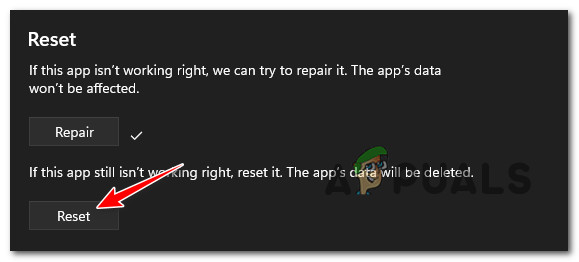
- In case the same error is still popping up, return to the Advanced Settings menu of Microsoft Store and click the Reset button.

Reset the Windows Store component Note: Resetting the Windows Store app will not make you lose any library item or any type of other data related to your account. All it does is it will clear every temp folder that the Windows Store uses.
- At the confirmation prompt, click Reset once again to initiate the reset procedure.
- After this second procedure is complete, reboot your computer and see if the problem is now resolved.
In case the 0x803F8001 error is still occurring even after you tried repairing and resetting the Windows Store component, move down to the next method below for a different way of ensuring that the store component is not dealing with the system file corruption.
Reinstall the Windows Store via Windows Terminal
There are also situations where the corrupted file dependencies of the Windows Store will persist although you just tried resetting the utility. In this case, the best course of action is to reinstall the entire Windows Store component.
However, keep in mind that you won’t be able to reinstall the component conventionally – Windows 11 won’t allow you to do this from the Programs and Features menu.
You will have to do this from an elevated Windows Terminal app to make sure that you have the necessary permissions.
Follow the instructions below to reinstall the entire Windows Store component using a command that will perform the re-installation via the Windows Terminal:
- Press Windows key + R to open up a Run dialog box. Next, type ‘wt’ and press Ctrl + Shift + Enter to open up a Windows Terminal window with admin access.
Opening up a Windows Terminal app - When you’re prompted by the User Account Control, click Yes to grant admin access.
- Once you’re inside the elevated Windows Terminal app, paste the following command and press Enter to initiate a reinstallation procedure of the entire Windows Store component using Powershell:
Get-AppxPackage -allusers *WindowsStore* | Remove-AppxPackage
Note: This command will essentially uninstall Windows Store functionality from your PC. But you will need to restart your PC to complete the process.
- After the operation is complete, reboot your PC and wait for the next startup to complete.
- Once your computer boots back up, follow step 1 again to open another elevated Windows Terminal window, then paste the following command to reinstall the Windows Store component:
Get-AppxPackage -allusers *WindowsStore* | Foreach {Add-AppxPackage -DisableDevelopmentMode -Register “$($_.InstallLocation)AppXManifest.xml”} - Once the command is processed successfully and the Windows Store component is reinstalled, reboot your PC one final time and see if the problem is now resolved.
In case the same 0x803F8001 error is still occurring, move down to the next potential fix below.
Run SFC and DISM scans
If you’ve come so far without a resolution, it’s almost certain that you’re dealing with some kind of system file corruption that is somehow affecting the functionality of the Windows Store.
Given the interconnected nature of the Store component on Windows 11, there are a lot of dependencies that might be indirectly causing the 0x803F8001 error.
With this in mind, you should also take the time to run a couple of built-in utilities capable of scanning for corrupted system files and replacing them with healthy equivalents – SFC (System File Checker) and DISM (Deployment Image Servicing and Management).
Our recommendation is to start with an SFC scan performed from an elevated CMD prompt.
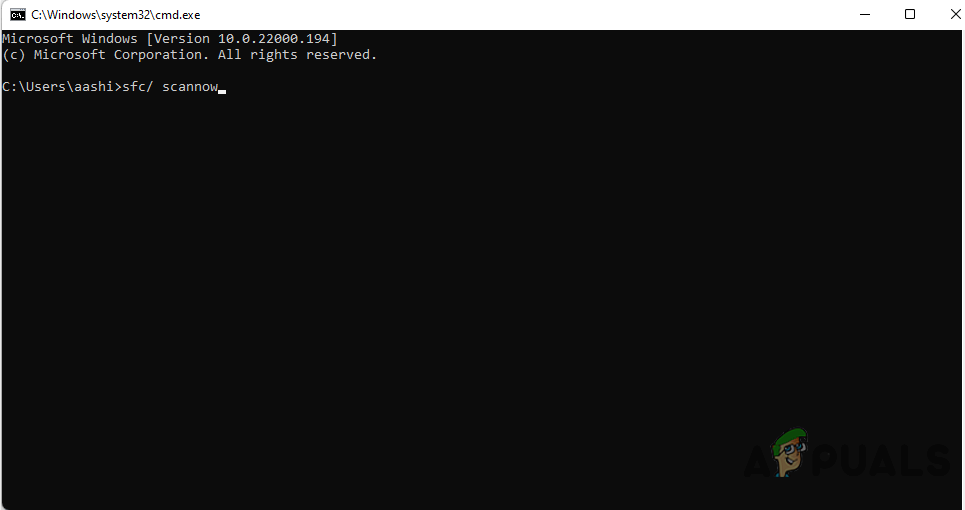
Once the SFC operation is complete, reboot your PC and wait for the next startup is complete.
Note: This operation will scan your system for corrupted files and replace any corrupted file or dependency with a healthy equivalent using a locally stored cache.
After your PC boots back up, you should follow up with a DISM scan (even if you don’t see the error occurring again).
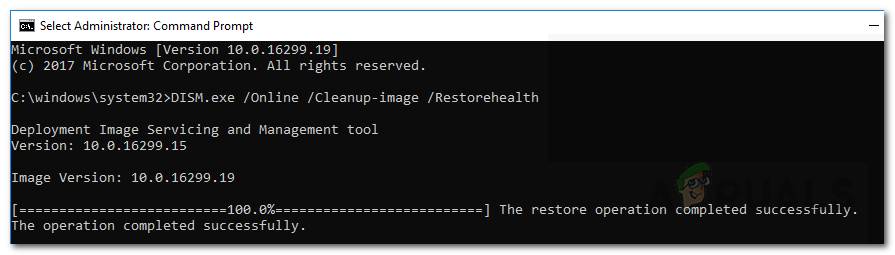
Note: Keep in mind that before you launch a DISM scan, you’ll need to ensure that you have a stable connection to the internet. This is required because DISM is using a sub-component of Windows Update to download healthy files to replace the corrupted ones.
Once you’ve performed both types of scans, replicate the scenario that was previously causing the 0x803F8001 error and see if the problem is now fixed.
If the same problem is still occurring, move down to the final method below.
Perform a Repair install
If none of the methods features so far in this article have proven to be effective in your case, one last thing you can try before going for a clean install (and possibly think about moving away from an insider build), is to perform a repair install procedure.
This operation will allow you to reinstall every component of your current Windows 11 installation without losing any personal data that you might be currently storing on the OS drive. If you want to give it a go, follow these instructions to perform a repair install (in-place repair) on Windows 11.
The Windows Store is the best place to download new applications or update existing ones. Several users complained of receiving an error code 0x803F8001 while trying to update their apps from Microsoft Store. If you are also unable to download the updates for the application installed on your PC, follow this troubleshooting guide till the end.

What causes an error 0x803F8001 on Windows?
Amongst all possible reasons that may cause this error code, Enabled Windows Security, Proxy, and VPN are the main culprits. So, disable all these system tools on your computer and check if the issue resolves this way.
Unnecessarily stored cache within your Store app is another reason why an error code 0x803F8001 occurs. Reset the Microsoft Store app by using WSReset, and check if the problem resolves.
Moving forward, if the app (in concern) doesn’t identify the location of your system may also lead to the same error code. Re-configure proxy, Resetting Windows Store, Run DISM, and correctly Setting up language & region settings might help you to overcome this app updating issue on Windows 11/10.
To fix the Windows Store Error 0x803F8001, use the following workarounds –
- Retry the update after uninstalling and reinstalling the app
- Temporarily disable the Antivirus
- Reset Windows Store Cache
- Re-register the Windows Store app
- Allow the apps to use your location
- Disable proxy
- Use DISM tool
- Reset Language and Region settings
1] Retry the update after uninstalling and reinstalling the app
Many users solve this error while downloading the update by just uninstalling and fresh installing the Store app. To perform this task, right-click on the program which you are trying to update and select the Uninstall option. Now, download the recent version of the removed application again visiting Microsoft Store.
2] Temporarily disable the Antivirus
Antivirus is considered to be an effective application that protects your PC from malicious attacks. However, this may sometimes block genuine updates and lead to Store Error code 0x803F8001. To fix this, you should disable the default anti-malware program temporarily till you update the Store app. Here is how to proceed –
- Go to the navigation pane on the Taskbar and select Windows Security.
- Click the Virus & threat protection option.
- Now, tap Manage Settings by scrolling down the cursor.
- Here, turn off the Real-time protection toggle switch.
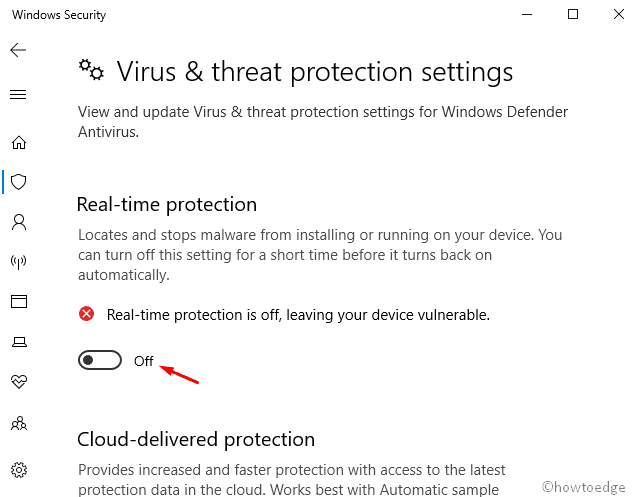
- You will receive a confirmation window, press Yes to authenticate.
- Close all running windows and restart your PC.
3] Reset Windows Store Cache
The cache stored inside Microsoft Store prevents updating any software and leads to Error code 0x803F8001. Resetting Windows Store is the most potential workaround to solve the problem. To do so, use the steps –
- Right-click on Windows and select the Settings option.
- On the succeeding screen, select the Apps category.
- Click Apps and Features thereafter Microsoft Store from the right panel.
- Next, hit the Advanced Options link.

- Now, tap the Reset button to start this process.
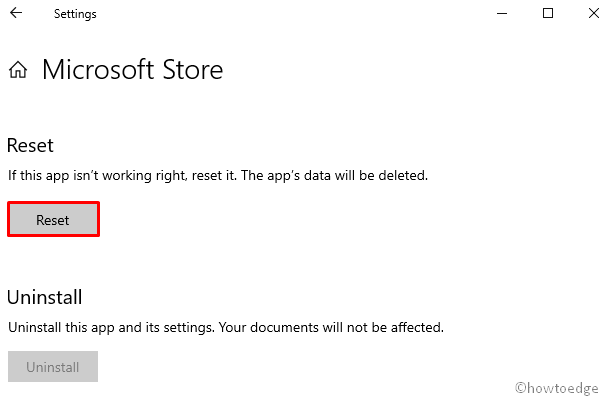
Once over, update Windows Store without getting the Error code 0x803F8001.
4] Re-register the Windows Store app
Sometimes, Windows Store generates unnecessary cache which in turn prevents this app from updating. To resolve this bug, you should re-register the Microsoft Store by running a few codes on the command prompt. Here is how to do it –
- Go to Start and type CMD in the text box.
- Right-click on Command Prompt and select Run as administrator.
- If there appears a UAC prompt, tap Yes to permit access.
- On the elevated command prompt, copy/paste the following code and hit Enter at the end.
PowerShell -ExecutionPolicy Unrestricted -Command “& {$manifest = (Get-AppxPackage Microsoft.WindowsStore).InstallLocation + ‘AppxManifest.xml’ ; Add-AppxPackage -DisableDevelopmentMode -Register $manifest}”
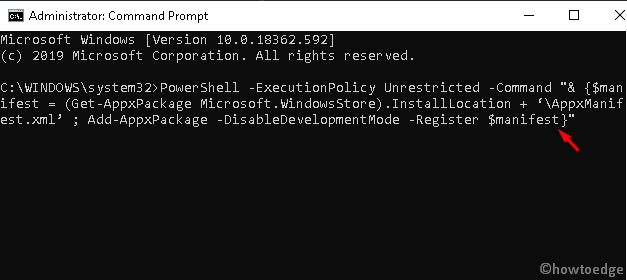
- After executing the codes successfully, exit the prompt area and try updating the Store application.
5] Allow the apps to use your location
If you have ever turned off the access of location to Microsoft Store, this may cause the error code 0x803F8001. If that’s the case, allow this application to have your system’s location using the following steps –
- Press Win & S hotkey to launch the Search icon.
- In the text bar, type Location and click the Location privacy settings.
- Under the Allow apps to access your location section, Turn On the toggle switch.
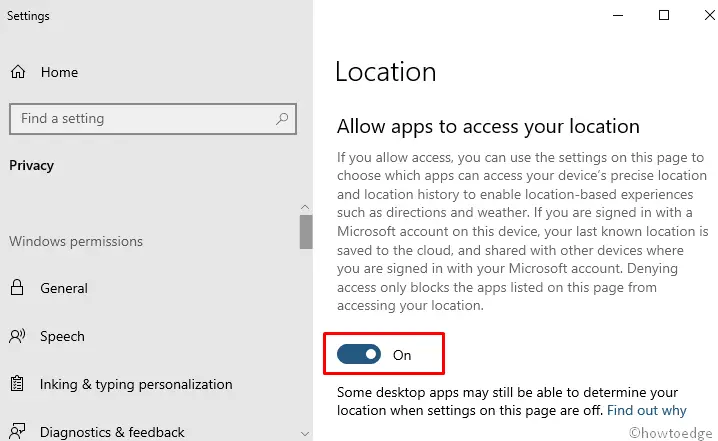
Check whether it does fix the Windows Store Error code 0x803F8001 or not. If not, try the next workaround –
6] Disable proxy
When the proxy server is set as enabled, it may block downloading new updates for different apps due to privacy issues. To fix this problem, you should disable this setup using the below steps –
- Press Win & R hotkey to launch the Run dialog.
- Type
inetcpl.cplon it and press the Enter key. - When the Internet Properties window starts, go to the Connection tab.
- Here, select the LAN settings button.
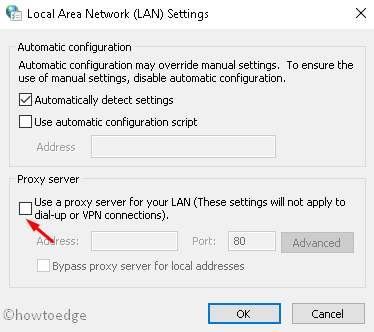
- Next, unmark the “Use a proxy server for your LAN” checkbox.
- Lastly, press the OK button on both pages to save the recent changes.
7] Try the DISM tool
The DISM is the most powerful in-built tool of Windows 10 that can scan and repair damaged files inside your PC. To do so, use the steps –
- Right-click on the Windows icon and select the Run option.
- Type cmd at the void and simultaneously press Ctrl+Shift+Enter.
- On the User Account Control window, tap Yes to permit access.
- Copy/Paste the following code and hit Enter.
dism /online /cleanup-image /restorehealth

- This will take approx 10 to 15 minutes to complete the whole task.
- Once over, check if you still receive the Error code 0x803F8001 while opening Windows Store.
8] Reset Language and Region settings
When there is an incorrect setup under language and regional settings, this may result in similar error messages. Hence, you should change them using the below steps –
- Press Win & I hotkey to open the Settings app.
- Select Time & Language and then Region on the left panel.
- Make sure that the United States is set as the first preference under the Region or Country section.
- Next, tap the Language category and select English (United States) as the default one.

- You may now close this window and try again to update Microsoft Store without getting the error code 0x803F8001.
Is there a permanent fix for error 0x803F8001?
Resetting the Store app using WSReset or Reinstalling Microsoft Store via PowerShell might work to resolve this error code 0x803F8001 on Windows 11/10. However, we can’t say for sure this will work permanently as the cache might build up again with your PC usage and you need to attempt the above fixes time and again.
How do I fix Minecraft Error Code 0x803f8001?
The same error code might also occur when you are playing Minecraft on your Windows PC. Apart from applying the above fixes, one should also work to reset Minecraft, and see if this problem resolves. In case it persists even after this, uninstall the Minecraft launcher from your device, clear all its leftover files, and then reinstall Minecraft on Windows.
Here’s an article on how to resolve this error code specifically when playing games on Minecraft.
Tip: If you are facing update, activation, or driver issues on your Windows PC, try RESTORO PC Repair Tool. This software will scan your device for potential issues and resolve them automatically.