-
Question
-
I have lots of the following error messages in the event viewer.
Session «Circular Kernel Context Logger» failed to start with the following error: 0xC0000035
Is there a doctor in the room please ?
— What does it mean ?
— Is something wrong with my computer ? or with me ?
— How to avoid this ?
Regards
Picsoe
All replies
-
Seems to occur at restart/boot. Wonder what it means.
Doc
-
I have lots of the following error messages in the event viewer.
Session «Circular Kernel Context Logger» failed to start with the following error: 0xC0000035
Is there a doctor in the room please ?
— What does it mean ?
— Is something wrong with my computer ? or with me ?
— How to avoid this ?
Regards Picsoe
Hi Picsoe
In the Event Viewer, double click one of these events to see the details. At the lower/left corner of the details window, click the Copy Button and paste the results in a reply back here.
Regards,
Thank You for testing Windows 7
Ronnie Vernon MVP
-
Proposed as answer by
Monday, April 21, 2014 7:45 AM
-
Proposed as answer by
-
Hi Picsoe
In the Event Viewer, double click one of these events to see the details. At the lower/left corner of the details window, click the Copy Button and paste the results in a reply back here.
Regards,
Thank You for testing Windows 7
Ronnie Vernon MVP
Thanks Ronnie, here is the copy that you asked for :
Log Name: Microsoft-Windows-Kernel-EventTracing/Admin
Source: Microsoft-Windows-Kernel-EventTracing
Date: 15/09/2009 14:48:38
Event ID: 2
Task Category: Session
Level: Error
Keywords: Session
User: SYSTEM
Computer: Picsoetje-PC
Description:
Session «Circular Kernel Context Logger» failed to start with the following error: 0xC0000035
Event Xml:
<Event xmlns=»http://schemas.microsoft.com/win/2004/08/events/event»>
<System>
<Provider Name=»Microsoft-Windows-Kernel-EventTracing» Guid=»{B675EC37-BDB6-4648-BC92-F3FDC74D3CA2}» />
<EventID>2</EventID>
<Version>0</Version>
<Level>2</Level>
<Task>2</Task>
<Opcode>12</Opcode>
<Keywords>0x8000000000000010</Keywords>
<TimeCreated SystemTime=»2009-09-15T12:48:38.940841700Z» />
<EventRecordID>1421</EventRecordID>
<Correlation />
<Execution ProcessID=»4″ ThreadID=»52″ />
<Channel>Microsoft-Windows-Kernel-EventTracing/Admin</Channel>
<Computer>Picsoetje-PC</Computer>
<Security UserID=»S-1-5-18″ />
</System>
<EventData>
<Data Name=»SessionName»>Circular Kernel Context Logger</Data>
<Data Name=»FileName»>
</Data>
<Data Name=»ErrorCode»>3221225525</Data>
<Data Name=»LoggingMode»>268436608</Data>
</EventData>
</Event>
Regards
Picsoe -
Hi Picsoe
I did some research on this event and it appears to be one of those ‘non-event’ events?
The ‘Microsoft-Windows-Kernel-EventTracing’ appears to run each time the system is started along with the associated ‘Circular Kernel Context Logger’. These components are part of the Performance Diagnostics.
The ‘0xC0000035’ error code returns as ‘STATUS_OBJECT_NAME_COLLISION’. This error code has been associated with a duplicate domain security identifier (SID) being detected, also as ‘the event logger is full’ with Session «Circular Kernel Context Logger» failed to start.
There are many threads that refer to this event and associate it with many different behaviors, but i think these are redundant since the users were just looking for the cause for a problem that did not actually have anything to do with this event.
For now I would recommend that you monitor how often this event is recorded, but otherwise simply ignore it. It will likely disappear at some point.
Hope this helps.
Thank You for testing Windows 7
Ronnie Vernon MVP
-
Marked as answer by
Robinson Zhang
Monday, September 21, 2009 4:18 AM -
Unmarked as answer by
Picsoe
Monday, September 21, 2009 5:08 AM
-
Marked as answer by
-
Hi,
I have a clean install of Windows 7 downloaded from MSDN. This is running stand alone as a media centre PC. It is not a member of a domain. I appear to get the error message
Session «Circular Kernel Context Logger» failed to start with the following error: 0xC0000035
Repeated ~1second. It appears to start when the computer resumes from standby and then continues. The system appears to be brought out of standby by an attempt to access something at Microsoft and I receive a warning
Name resolution for the name dns.msftncsi.com timed out after none of the configured DNS servers responded.After this the kernel error starts to appear.
There is clearly something wrong. Advice would be appreciated.
Paul Ireland
-
Exactly the same here.
It goes on and on, up to 3 times per second.
Regards
Picsoe -
Hi,
I had the same trouble with Windows 7 (the RTM version). The Kernel context logger is a bit like a flight data recorder and takes snapshots of the system (I think every second) into a 100MB RAM file (not a log file on disk). It is needed.
I found the fix:
Rename this file: %windir%panthersetup.etl to setup.old and reboot.
Worked for me. To prove this, delete the logs in event viewer and keep an eye out for any recurrence. Can’t tell you why it was broken in the first place, though!
Regards,
RichardVet
-
Proposed as answer by
Doug Shreve
Friday, March 22, 2013 11:18 PM
-
Proposed as answer by
-
Seems I only and always get this error when I do a logoff/logon (same user, I’m only one on my system). Doesn’t happen on normal boots/reboots.
-
Proposed as answer by
jonathanVerrier
Tuesday, September 20, 2016 2:28 PM
-
Proposed as answer by
-
I’ve been away for months, but I can see that the event viewer filter on our brand new Windows 7 has not made much progress in the event 35 series [processor drivers not seen as installed or running by Windows] and I can see a new thread after I installed
Microsoft Security Essentials that the scanner will stop unexpectedly due to this filter not being solved? Error code 3221225458 ?In answer to your question, NO nothing is wrong with either your computer or your software and I think not you either, but you may want to check with a professional just in case?
-
hi,
thanks rename solve the problem.
regards
Basel
-
THis fix worked for me! Using Windows 7 Ultimate 64-bit. I was getting 10 of these errors each and everytime the desktop (Dell Optiplex 780) was restarted..it was maddening! Thank you for taking the time to nail this down RichardVet!
Doug Shreve
-
Proposed as answer by
Doug Shreve
Friday, March 22, 2013 11:16 PM -
Unproposed as answer by
Doug Shreve
Friday, March 22, 2013 11:16 PM
-
Proposed as answer by
-
Hi,
I had the same trouble with Windows 7 (the RTM version). The Kernel context logger is a bit like a flight data recorder and takes snapshots of the system (I think every second) into a 100MB RAM file (not a log file on disk). It is needed.
I found the fix:
Rename this file: %windir%panthersetup.etl to setup.old and reboot.
Worked for me. To prove this, delete the logs in event viewer and keep an eye out for any recurrence. Can’t tell you why it was broken in the first place, though!
Regards,
RichardVet
Thank you RichardVet!!!
-
Log Name: Microsoft-Windows-Kernel-EventTracing/Admin
Source: Microsoft-Windows-Kernel-EventTracing
Date: 1/16/2013 6:22:23 PM
Event ID: 3
Task Category: Session
Level: Error
Keywords: Session
User: SYSTEM
Computer: shahjanand-PC
Description:
Session «Circular Kernel Context Logger» stopped due to the following error: 0xC0000188
Event Xml:
<Event xmlns=»http://schemas.microsoft.com/win/2004/08/events/event»>
<System>
<Provider Name=»Microsoft-Windows-Kernel-EventTracing» Guid=»{B675EC37-BDB6-4648-BC92-F3FDC74D3CA2}» />
<EventID>3</EventID>
<Version>0</Version>
<Level>2</Level>
<Task>2</Task>
<Opcode>14</Opcode>
<Keywords>0x8000000000000010</Keywords>
<TimeCreated SystemTime=»2013-01-17T02:22:23.969514500Z» />
<EventRecordID>8</EventRecordID>
<Correlation />
<Execution ProcessID=»4″ ThreadID=»5440″ />
<Channel>Microsoft-Windows-Kernel-EventTracing/Admin</Channel>
<Computer>shahjanand-PC</Computer>
<Security UserID=»S-1-5-18″ />
</System>
<EventData>
<Data Name=»SessionName»>Circular Kernel Context Logger</Data>
<Data Name=»FileName»>C:windowssystem32WDILogFilesShutdownCKCL.etl</Data>
<Data Name=»ErrorCode»>3221225864</Data>
<Data Name=»LoggingMode»>128</Data>
</EventData>
</Event> -
Nombre de registro:Microsoft-Windows-Kernel-EventTracing/Admin
Origen: Microsoft-Windows-Kernel-EventTracing
Fecha: 07/10/3013 09:42:31 a. m.
Id. del evento:3
Categoría de la tarea:Sesión
Nivel: Error
Palabras clave:Sesión
Usuario: SYSTEM
Equipo: SERVIDOR
Descripción:
Finalizó la sesión «Circular Kernel Context Logger» con el siguiente error: 0xC0000188
XML de evento:
<Event xmlns=»http://schemas.microsoft.com/win/2004/08/events/event»>
<System>
<Provider Name=»Microsoft-Windows-Kernel-EventTracing» Guid=»{B675EC37-BDB6-4648-BC92-F3FDC74D3CA2}» />
<EventID>3</EventID>
<Version>1</Version>
<Level>2</Level>
<Task>2</Task>
<Opcode>14</Opcode>
<Keywords>0x8000000000000010</Keywords>
<TimeCreated SystemTime=»3013-10-07T14:42:31.653255200Z» />
<EventRecordID>4</EventRecordID>
<Correlation />
<Execution ProcessID=»4″ ThreadID=»212″ />
<Channel>Microsoft-Windows-Kernel-EventTracing/Admin</Channel>
<Computer>SERVIDOR</Computer>
<Security UserID=»S-1-5-18″ />
</System>
<EventData>
<Data Name=»SessionName»>Circular Kernel Context Logger</Data>
<Data Name=»FileName»>C:Windowssystem32WDILogFilesBootCKCL.etl</Data>
<Data Name=»ErrorCode»>3221225864</Data>
<Data Name=»LoggingMode»>41943168</Data>
<Data Name=»FailureReason»>0</Data>
</EventData>
</Event>
PLEASE HELP!!!
-
Can’t tell you why it was broken in the first place, though!
Regards,
RichardVet
Thanks! This worked for me as well, but I too, don’t know why it broke in the first place. It was a new PC, freshly joined to the domain and updated. If it is somewhat related or tied in, I was having issues with WMI that I had to deal with. Had to rebuild
it and re-register everything.
Ranie
-
I can’t find this, I have win 7 64 SP1…help
-
Had an incident this morning that may throw some light on this issue.
A Win 7 Pro machine in an Active Directory Domain could not access a mapped share (H:) on the server. I disconnected the share, then attempted to remap it but found that H: was not available among the drive letters offered. I mapped the share
to another drive letter so the user could continue.When I followed up to try to find the cause, I found a device named H: under Portable Devices in Device Manager. User said that a USB flash drive had been left in the machine over the weekend and the machine had been shut down. I would surmise
that on startup, the flash drive was recognised and obtained drive H: before the network connection was re-established so mapping the share failed.May or may not be significant, but 20 instances of «Circular Kernel Context Logger» on each startup.
-
I cannot find the file ‘setup.etl’ in win7 pro. I found a ‘panthersetup.exe’ and a ‘panthersetup’ any advice is appreciated.
-
You sure you aren’t looking at FOLDERS? There is a folder named setup.exe, BUT setup.etl is a FILE plainly listed (probably a bit lower on your screen), not even hidden. Check again, IMO.
BTW, renaming the file and autocreating a new one worked for me, too. Thanks

-
Edited by
WillB69
Thursday, November 7, 2013 5:21 PM -
Proposed as answer by
Franco Tsang
Sunday, May 8, 2016 2:34 PM -
Unproposed as answer by
Franco Tsang
Sunday, May 8, 2016 2:34 PM
-
Edited by
-
I believe this IS VERY significant. I recently discovered my girlfriend was using a KeyLogger program to monitor all internet activity as well as gain all of my passcode information. Since she knew I would monitor activity on my PCs, all of the program data
was stored on her portable device, in this case, her ipod. Every time she rebooted the system with this device attached it automatically first, discovered my system admin password, then Impersonates the Administrator. There are several other things that happen
this is simply an abridged version of the event.Here is a complete list of privileges it assigns to this «new user» :
Privileges: SeSecurityPrivilege
SeTakeOwnershipPrivilege
SeLoadDriverPrivilege
SeBackupPrivilege
SeRestorePrivilege
SeDebugPrivilege
SeSystemEnvironmentPrivilege
SeImpersonatePrivilege -
First, I apologize for hitting the wrong button, as a proposed answer instead of a reply.
My reply to this issue would be to monitor your system for a KeyLogger program. This program may be hosted on a portable device. It will usually hide from the system, and run in a cloaked mode. The intent of these programs is to take periodic snapshots of
your activity, as well as monitor EVERY keystroke made. This allows the program to monitor all emails, texts, chats, messaging of all types, as well as obtain log in information to ANY site visited.Most are designed to email these snap shots and logged keystrokes to a designated person.. The one snooping your activity.
-
Hi,
I had the same trouble with Windows 7 (the RTM version). The Kernel context logger is a bit like a flight data recorder and takes snapshots of the system (I think every second) into a 100MB RAM file (not a log file on disk). It is needed.
I found the fix:
Rename this file: %windir%panthersetup.etl to setup.old and reboot.
Worked for me. To prove this, delete the logs in event viewer and keep an eye out for any recurrence. Can’t tell you why it was broken in the first place, though!
Regards,
RichardVet
I am having this exact same error. I tried to perform this fix, but I could not find the setup.etl file. The only setup files in this directory close are setuperr and setupact. Any ideas? I would like to fix this error.
-
Hi,
I had the same trouble with Windows 7 (the RTM version). The Kernel context logger is a bit like a flight data recorder and takes snapshots of the system (I think every second) into a 100MB RAM file (not a log file on disk). It is needed.
I found the fix:
Rename this file: %windir%panthersetup.etl to setup.old and reboot.
Worked for me. To prove this, delete the logs in event viewer and keep an eye out for any recurrence. Can’t tell you why it was broken in the first place, though!
Regards,
RichardVet
Well, I stumbled my way in here, because I started experiencing some problems with some Windows 7 SP1 64 Bit Enterprise Virtual Machines I have running and you can imagine the headache of dealing with this error appearing 20 times after each reboot on each
VM. If you have some form of consolidated Event Error Log that is «farming» all of these event logs into one then you can imagine the nightmare of seeing constant errors showing up and flooding logs, so no THANK YOU MICROSOFT… Anyway, Thank You RichardVet for your solution although I wanted to add an addendum for those of you who also found that RichardVet’s solution did not actually work 100% of the time. I went ahead and renamed the file, same error. I went ahead and deleted
the file, same error. It seems this file is created as part of the initial install and then might get updated over time, but I found that it must exist otherwise error is generated even though it might never be used again.So basically, I created a blank TXT file and renamed it setup.etl — empty file, no edit, etc. Errors stopped, so just thought I would share that with others who still gets errors after RENAME or DELETION.
If you have issues creating the file in the Panther folder or it does not exist, then create the file on your desktop and then COPY/PASTE into the Panther folder which you can also manually create.
C:WindowsPanther —> setup.etl
Thanks and Good Luck…
-
Edited by
DonChino
Sunday, June 1, 2014 6:53 AM
Mention File Permission and Existence
-
Edited by
-
Hi DonChino,
How do you create a blank TXT file.
Best regards, Luis
-
To create a blank txt file, right-click on the desktop, and select «New» -> «Text Document»
Change the name as usual … right-click on the document icon (not the name) and select «Rename.»
You may need an administrative password.
-
Is she still your girlfriend? Sounds like a female character out of a James Bond movie.
-
Proposed as answer by
trmark123
Thursday, August 20, 2015 3:11 PM
-
Proposed as answer by
-
Used your solution with success until the setup.etl dissapeared.
After some testing in a Win 7 ultimate installation: The root cause seems to be a bug in login logout. If you do a logout and then login the error stream starts. If you then reboot it stops.
-
okay, here is my dumb question. Which file are you saying to rename « %windir%panthersetup.etl to setup.old
and reboot»?I know enough to fix somethings, but this fix isnt resonating with me. I trust its corrrect, but I need just a how
to on this.I have a number of errors as well in a brand new os in my new drive. So, I am taking these one at a time. And this is exactly the error code and problem I have in my logs, but I dont understand which file to rename. Just please show a step by step, (but
a simple one will do).Since this is a brand new OS windows 10 pro in my new replacement drive I am hoping to eliminate all/most of the events I am seeing on a regular basis. I just wonder if I should just undue everything and re-install my system, since it is beginning to lag
now like it did before my drive needed replacing. Since drive and os are new, I really dont see why I should be seeing any errors. But before I do all the reinstall, I thought I would work through each issue and see if I can figure out whats going on. The
dell guys are good at unclogging a system full of malware, but debugging is another story. Please help on this one issue though. -
Rename the file called «setup.etl» (found in the folder location: %windir%panther) to «setup.old»
James Wolf MS-MVP [Media Center]
-
Hi Ronnie,
Have we ever found a solution to the above problem…0xC0000035, from the event logs?
Best regards…trying my best to avoid windows 10 on my desk top but mebbe that needs replaced too.
Paul Stockwell
stockwellpg@ gmail.com


Регистратору контекста циклического ядра сеанса не удалось запуститься со следующей ошибкой: 0xc0000035 — это призрак, который преследовал последние три основных выпуска Windows. Это ошибка, которую Windows 10 по существу унаследовала от Windows 7.
Хотя это происходит реже в Windows 10, оно все же время от времени вызывает синий экран смерти. Но почему и как это исправить? В этом руководстве мы ответим на эти и другие вопросы.
Почему Circular Kernel Context Logger не запускается?
Ниже приведены некоторые факторы, которые могут привести к тому, что сеанс «Circular Kernel Context Logger» не запустится со следующей ошибкой: проблема 0xc0000035 на вашем ПК:
- Отключенная служба: некоторые пользователи сообщают, что эта проблема возникает из-за того, что служба Superfetch отключена. Решение этой проблемы — включить службу и перезагрузить компьютер.
- Устаревшие драйверы. Иногда эта проблема может быть вызвана неисправными или устаревшими сетевыми драйверами. Обновление драйверов до последней версии должно восстановить нормальную работу.
- Проблемы с сетевыми настройками. В некоторых случаях это сообщение об ошибке появляется из-за того, что включен IPv6. Многие пользователи смогли исправить это, просто отключив эту функцию.
Как исправить Circular Kernel Context Logger 0xc0000035?
1. Полностью перезагрузите компьютер
- Нажмите на меню «Пуск».
- Нажмите кнопку питания.

- Теперь выберите параметр «Перезагрузить».

Иногда самое простое решение обычно является самым эффективным. Простой перезапуск может помочь. Например, если вы имеете дело с ошибкой Circular Kernel Context Logger.
Проблема может быть связана с ошибками, которые будут устранены после перезагрузки компьютера.
2. Удалите файл MSSEOOBE.etl.
- Нажмите Windows клавишу + E и перейдите в папку ProgramData на локальном диске (C:).

- Щелкните Майкрософт.
- Выберите Основы безопасности Майкрософт.
- Теперь нажмите «Поддержка».
- Щелкните правой кнопкой мыши файл MSSEOOBE.etl и выберите параметр «Удалить».
- Наконец, перезагрузите компьютер.


Файл MSSEOOBE.etl является частью Microsoft Security Essentials. Однако это может вызвать ошибку Circular Kernel Context Logger.
Следовательно, вам нужно удалить папку, чтобы решить проблему. Обратите внимание, что это решение работает только для пользователей, использующих Microsoft Security Essentials.
3. Включите службу Superfetch/SysMain.
- Нажмите Windows клавишу + R , введите services.msc и нажмите кнопку ОК.

- Теперь дважды щелкните службу Superfetch или SysMain, чтобы открыть ее свойства.

- Установите для параметра «Тип запуска» значение «Автоматически» и нажмите кнопку «Пуск», если служба не запущена.
- Далее нажмите «Применить», а затем «ОК».
- Наконец, перезагрузите компьютер.


В некоторых случаях ошибка Circular Kernel Context Logger может появиться, если служба Superfetch отключена. Так что не пугайтесь, если вы не можете найти службу Superfetch на своем ПК.
Это связано с тем, что в более поздних версиях Windows 10 служба Superfetch называется SysMain. Так что они практически делают одно и то же.
4. Настройте максимальный размер файла сеансов трассировки событий запуска.
- Нажмите Windows клавишу + R , введите perfmon и нажмите OK.
- Разверните Наборы сборщиков данных в дереве слева.
- Щелкните Сеансы трассировки событий при запуске.

- На главной панели прокрутите вниз, пока не найдете запись ReadyBoot, а затем дважды щелкните ее.
- Нажмите на вкладку «Условие остановки».
- Установите максимальный размер 40 МБ (или больше).
- Наконец, нажмите OK и закройте системный монитор.


Не удалось запустить циклический регистратор контекста ядра сеанса со следующей ошибкой: может появиться сообщение 0xc0000035, поскольку максимальный размер файла сеансов трассировки событий запуска недостаточен. Вы можете использовать это решение, чтобы исправить это.
5. Отключить IPv6
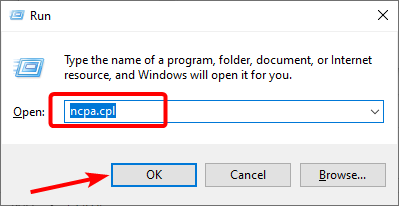
- Нажмите Windows клавишу + R , введите ncpa.cpl и нажмите кнопку OK.
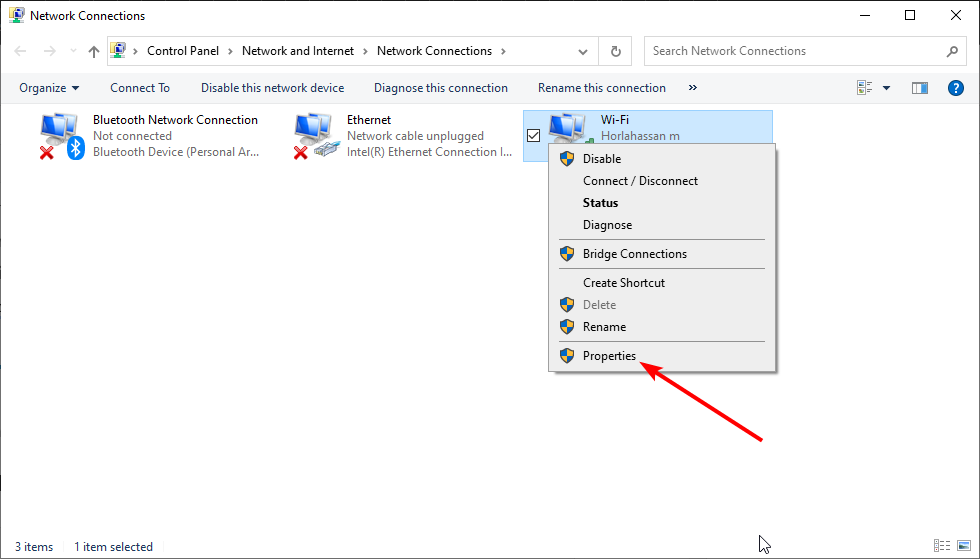
- Щелкните правой кнопкой мыши первое соединение, которое вы видите, и выберите «Свойства».

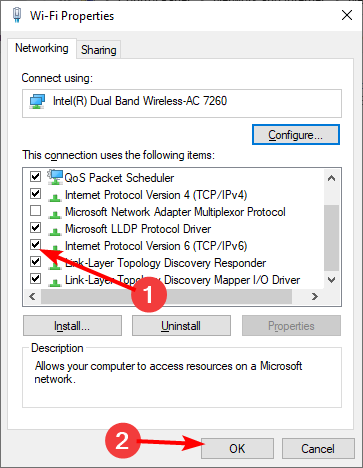
- Теперь снимите флажок Интернет-протокол версии 6 (TCP/IPV6).
- Нажмите «ОК».

- Наконец, повторите шаги 2–3 для другого сетевого адаптера в списке.


Другим эффективным решением этой ошибки Circular Kernel Context Logger является отключение IPV6. Это решило проблему для многих пользователей. Так что будет лучше, если ты попробуешь.
6. Обновите сетевые драйверы
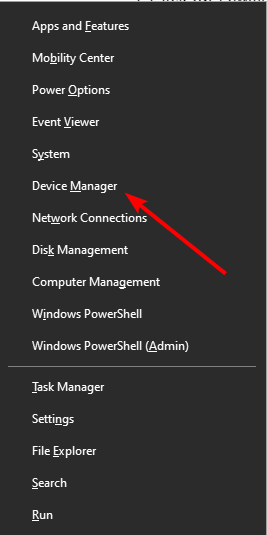
- Нажмите Windows клавишу + X и выберите Диспетчер устройств.

- Дважды щелкните параметр «Сетевые адаптеры», чтобы развернуть его, и щелкните правой кнопкой мыши основное устройство локальной сети.
- Теперь выберите «Обновить драйвер» в контекстном меню.

- Нажмите «Автоматический поиск драйверов».
- Наконец, установите все доступные обновления и перезагрузите компьютер.


Вам следует обновить драйвер, если приведенные выше исправления не устраняют ошибку Circular Kernel Context Logger. Один из лучших способов сделать это — использовать обновление Windows, как показано выше.
Кроме того, вы можете автоматически обновлять драйверы с помощью специального программного обеспечения. Таким образом, вы сэкономите время и получите правильную версию драйвера.
Вы также можете сканировать все свои драйверы и найти, нужно ли их обновить или восстановить. Инструмент даст вам простой отчет о состоянии каждого драйвера. Вы должны позволить ему начать обновление/восстановление.
Если ни одно из решений, описанных в этом руководстве, вам не помогло, единственным вариантом является переустановка или обновление Windows, если вы используете более старую версию.
Однако, если эта ошибка сохраняется, но не влияет на работу вашей системы, ее можно игнорировать.
Итак, какое решение сработало для вас? Хотите указать на слепое пятно на нашей стороне? Пожалуйста, не стесняйтесь оставлять комментарии внизу. Как всегда, спасибо за чтение.
Enabling the required services should fix this issue for good
by Milan Stanojevic
Milan has been enthusiastic about technology ever since his childhood days, and this led him to take interest in all PC-related technologies. He’s a PC enthusiast and he… read more
Updated on February 9, 2023
Reviewed by
Alex Serban

After moving away from the corporate work-style, Alex has found rewards in a lifestyle of constant analysis, team coordination and pestering his colleagues. Holding an MCSA Windows Server… read more
- If you are facing the Circular Kernel Context Logger issue, it might be because the Superfetch service is disabled.
- You can fix this issue by updating your network drivers to the latest version.
- Another effective solution is to disable the IPv6 network feature.
XINSTALL BY CLICKING THE DOWNLOAD FILE
This software will repair common computer errors, protect you from file loss, malware, hardware failure and optimize your PC for maximum performance. Fix PC issues and remove viruses now in 3 easy steps:
- Download Restoro PC Repair Tool that comes with Patented Technologies (patent available here).
- Click Start Scan to find Windows issues that could be causing PC problems.
- Click Repair All to fix issues affecting your computer’s security and performance
- Restoro has been downloaded by 0 readers this month.
The session circular kernel context logger failed to start with the following error: 0xc0000035 is a ghost that has haunted the last three major releases of Windows. It’s an error that Windows 10 essentially inherited from Windows 7.
While it occurs less frequently on Windows 10, it still shows up to cause a Blue Screen of Death from time to time. But why and how can you fix it? In this guide, we’ll answer these questions and more.
Why has Circular Kernel Context Logger failed to start?
Below are some of the factors that can cause the session “Circular Kernel Context Logger” failed to start with the following error: 0xc0000035 issue on your PC:
- Disabled service: Some users have reported that this issue occurs because the Superfetch service is disabled. The solution to this is to enable the service and restart your PC.
- Outdated drivers: Sometimes, this problem can be caused by faulty or outdated network drivers. Updating your drivers to the latest version should restore normalcy.
- Issues with network settings: In some cases, this error message shows up because IPv6 is enabled. Many users have been able to fix it simply by disabling the feature.
How can I fix Circular Kernel Context Logger 0xc0000035?
- Why has Circular Kernel Context Logger failed to start?
- How can I fix Circular Kernel Context Logger 0xc0000035?
- 1. Reboot your computer completely
- 2. Delete the MSSEOOBE.etl file
- 3. Enable the Superfetch/SysMain service
- 4. Adjust the maximum file size of the startup event trace sessions
- 5. Disable IPv6
- 6. Update your network drivers
1. Reboot your computer completely
- Click on the Start Menu.
- Click on the Power button.

- Now, select the Restart option.
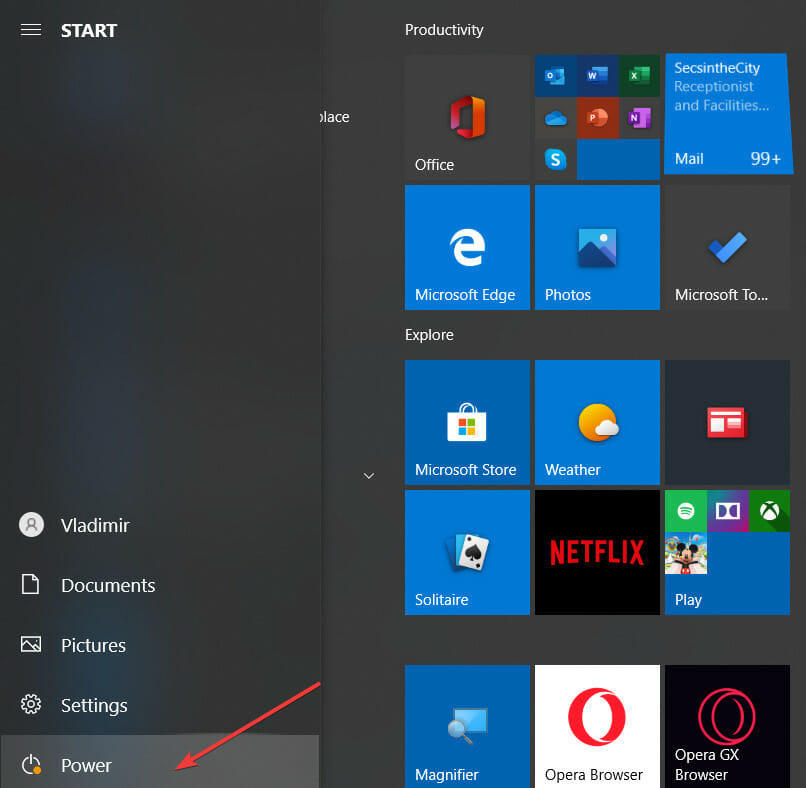
Sometimes, the easiest fix is usually the most effective. A simple restart might do the trick. For example, if you are dealing with the Circular Kernel Context Logger error.
The issue might be due to glitches that will be cleared upon restarting your PC.
2. Delete the MSSEOOBE.etl file
- Press the Windows key + E and Navigate to the ProgramData folder in your Local (C:) drive.
- Click on Microsoft.
- Select Microsoft Security Essentials.
- Now, click on Support.
- Right-click the MSSEOOBE.etl file and select the Delete option.
- Finally, restart your PC.
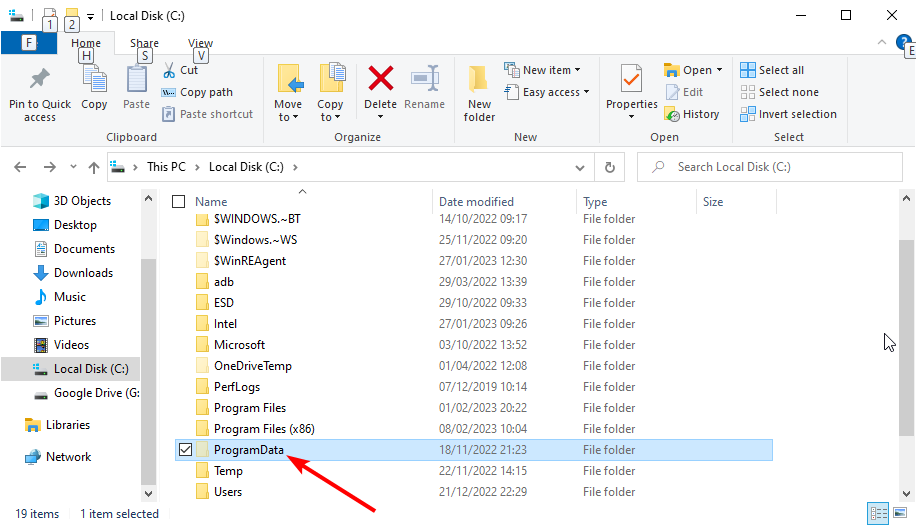
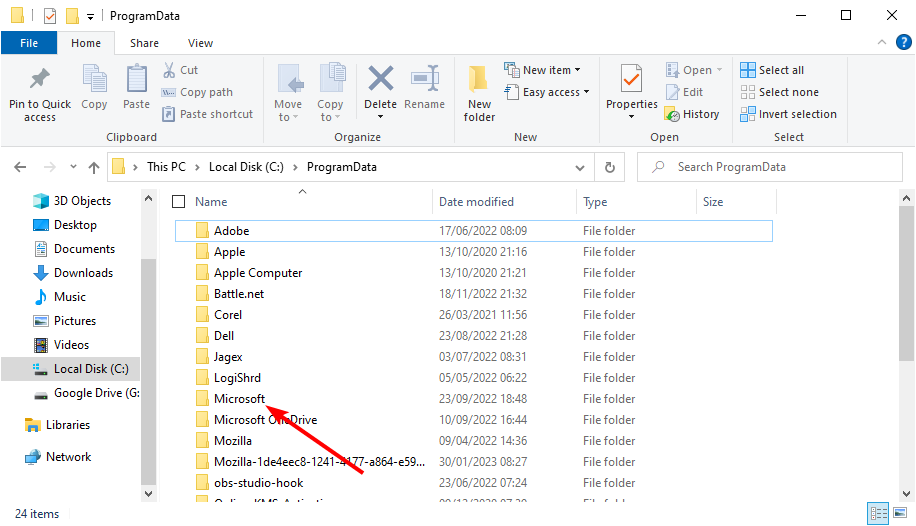
The MSSEOOBE.etl file is part of the Microsoft Security Essentials. However, it can cause the Circular Kernel Context Logger error.
Hence, you need to delete the folder to fix the issue. Note that this solution only works for users running Microsoft Security Essentials.
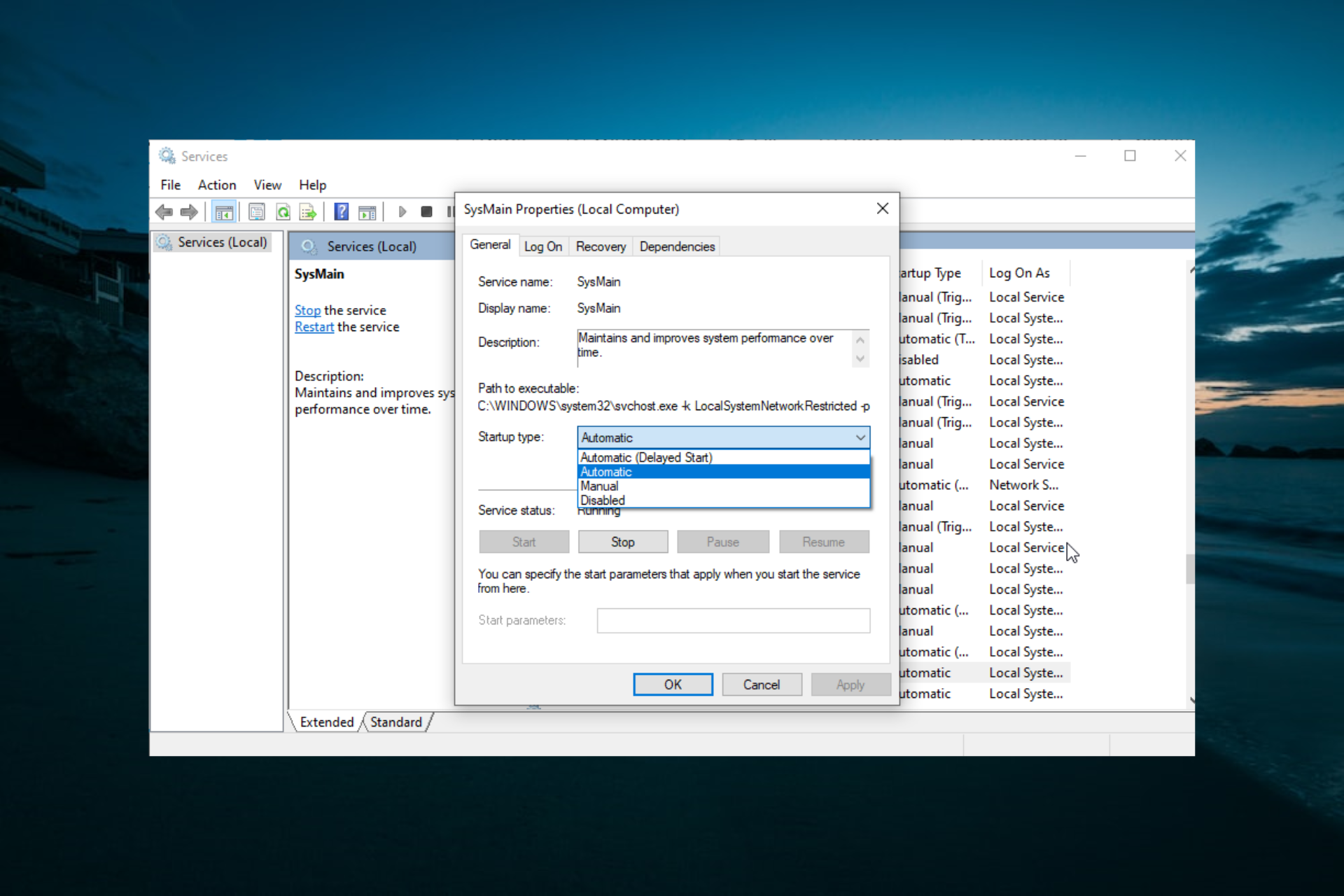
3. Enable the Superfetch/SysMain service
- Press the Windows key + R, type services.msc, and click the OK button.
- Now, double-click the Superfetch or SysMain service to open its properties.
- Set the Startup type to Automatic and click the Start button if the service is not running.
- Next, click Apply, followed by OK.
- Finally, restart your PC.
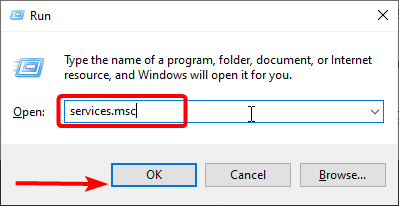
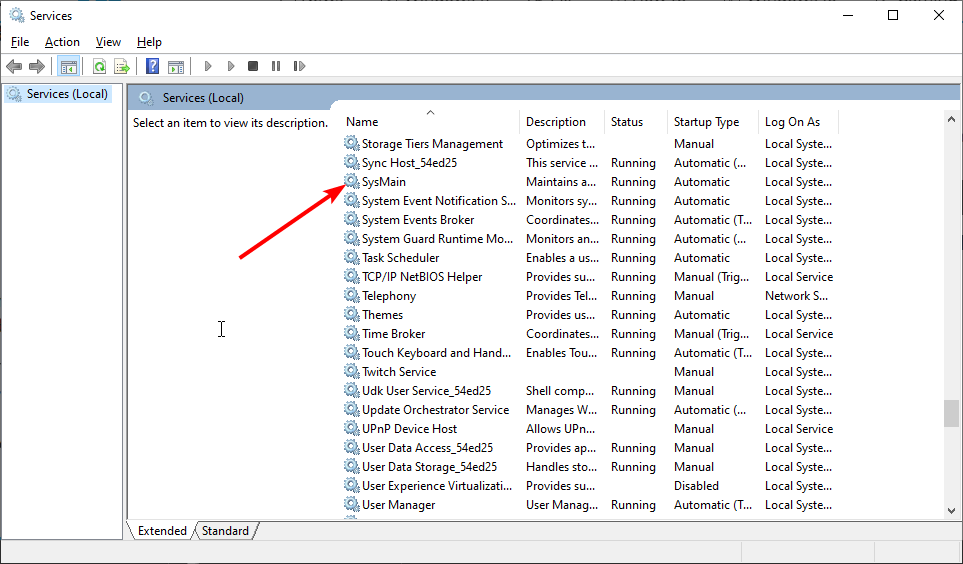
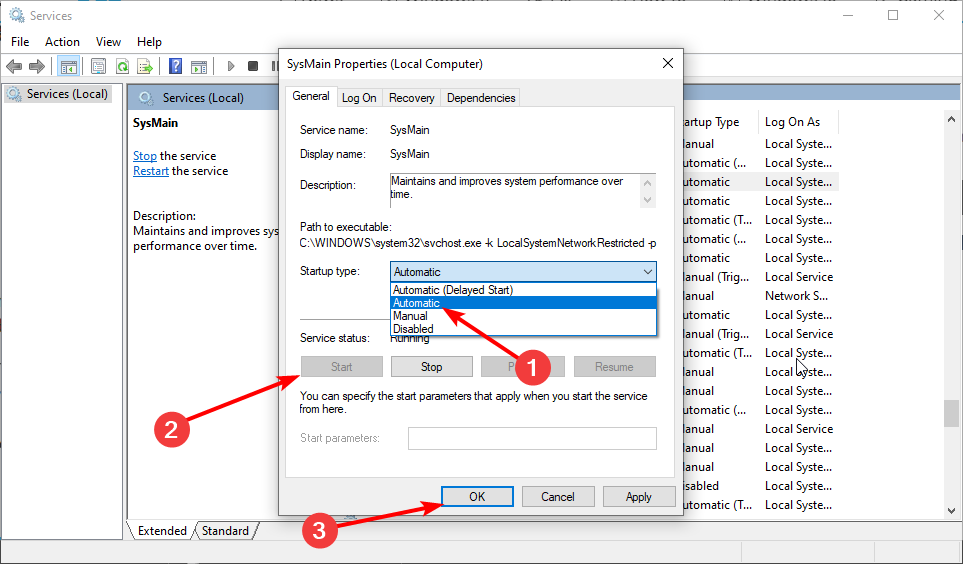
In some cases, the Circular Kernel Context Logger error can show up if the Superfetch service is disabled. So don’t be alarmed if you can’t find the Superfetch service on your PC.
This is because In later versions of Windows 10, the Superfetch service is named SysMain. So they virtually do the same thing.
4. Adjust the maximum file size of the startup event trace sessions
- Press the Windows key + R, type perfmon, and click OK.
- Expand Data Collector Sets from the left tree.
- Click on Startup Event Trace Sessions.
- In the main panel, scroll down till you find the ReadyBoot entry, and then double-click on it.
- Click on the Stop Condition tab.
- Set maximum size to 40MB (or more).
- Finally, click OK and close the Performance Monitor.
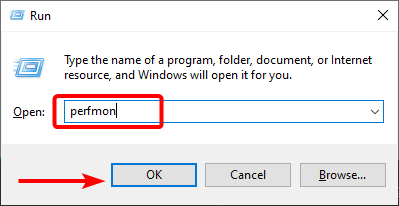
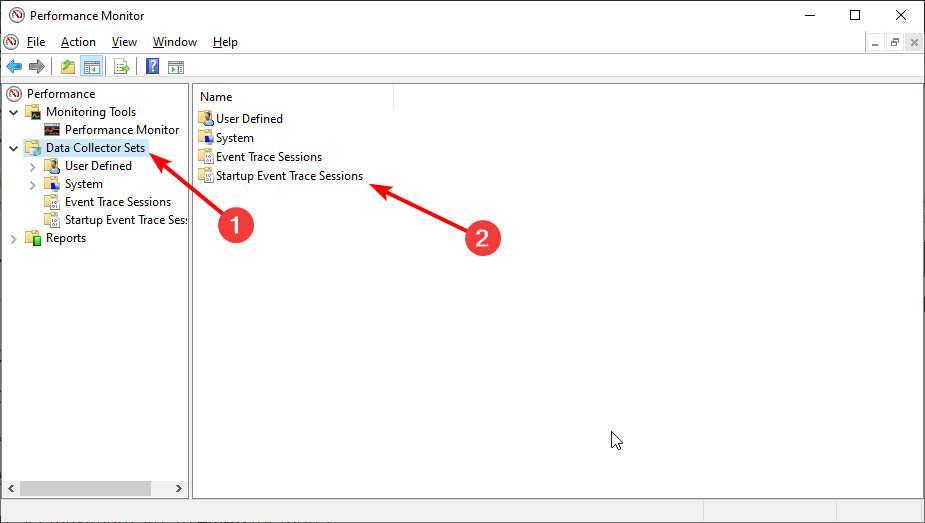


The session circular kernel context logger failed to start with the following error: 0xc0000035 message may appear because the maximum file size of the Startup Event Trace Sessions isn’t enough. You can use this solution to fix it.
- Fix: Page Fault in Nonpaged Area on Windows 10
- Apoint.exe: What is it & How to Fix its Errors
5. Disable IPv6
- Press the Windows key + R, type ncpa.cpl, and click the OK button.
- Right-click on the first connection you see and click on Properties.
- Now, uncheck Internet Protocol Version 6 (TCP/IPV6).
- Click OK.
- Finally, repeat steps 2 to 3 for the other network adapter on the list.
Some PC issues are hard to tackle, especially when it comes to corrupted repositories or missing Windows files. If you are having troubles fixing an error, your system may be partially broken.
We recommend installing Restoro, a tool that will scan your machine and identify what the fault is.
Click here to download and start repairing.
Another effective solution to this Circular Kernel Context Logger error is to disable IPV6. This has solved the problem for many users. So, it would be best if you tried it.
6. Update your network drivers
- Press the Windows key + X and select Device Manager.
- Double-click the Network adapters option to expand it, and right-click on your primary LAN device.
- Now, select Update driver from the context menu.
- Click on Search automatically for drivers.
- Finally, install any available updates and restart your PC.
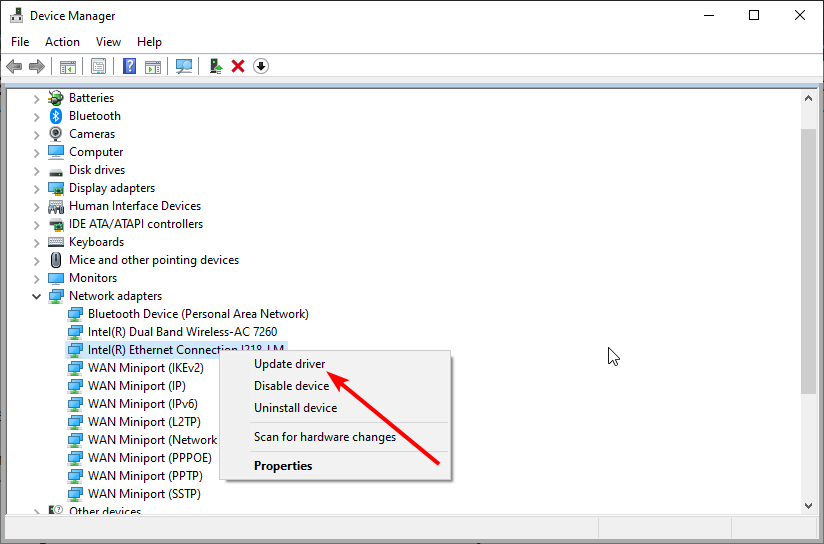
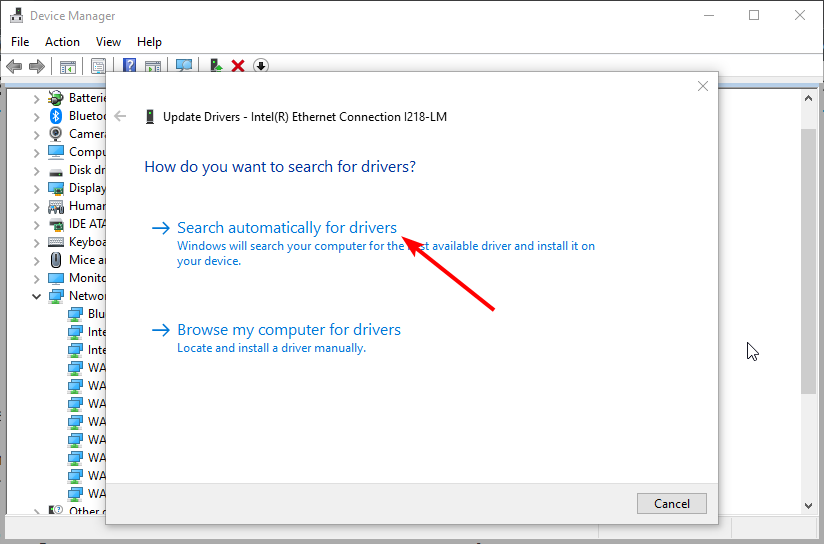
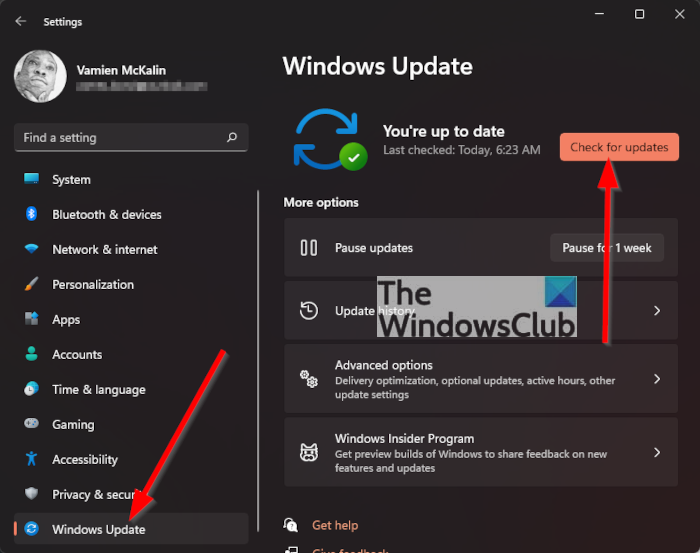
You should update your driver if the fixes above do not solve the Circular Kernel Context Logger error. One of the best ways to do this is to use the Windows update, as shown above.
Alternatively, you can update your drivers automatically with the help of dedicated software. This way, you will save time and be sure you get the correct driver version.
In this regard, we recommend DriverFix because it is easy to use and very light. To get started, install the program, select the driver you want it to update, and let it find the best versions available.
You can also scan all your drivers and find if you need to update or repair any. The tool will give you a simple report about the state of each driver. You have to let it start updating/repairing.
⇒ Get DriverFix
If none of the solutions in this guide worked for you, then your only other option is to reinstall or upgrade Windows if you’re using an older version.
However, if this error persists but doesn’t impact the way your system runs, then it’s okay to ignore it.
Similarly, if you face other issues like 0xC0000188 Error on Windows, check our detailed guide to fix it.
So which solution worked for you? Would you like to point out a blind spot on our side? Please don’t hesitate to leave a comment down below. As always, thank you for reading.

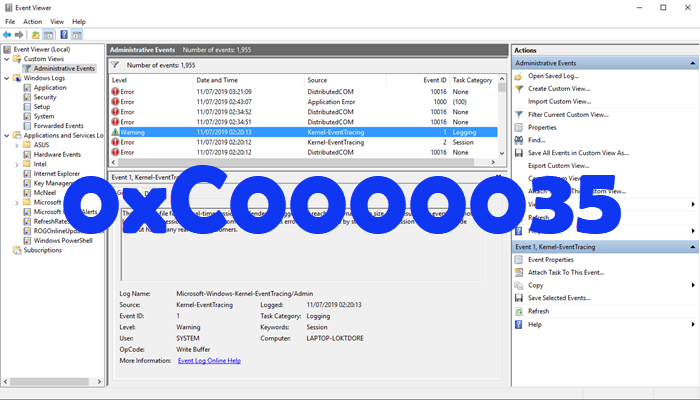
A very common error sometimes appears in your Event Viewer that states “Session “circular kernel context logger” failed to start with the following error: 0xc0000035″. This error is related to the dual-domain security identifier (SID) and it appears in the event viewer at different times for example when the user tries to print a document or the computer enters the screen saver mode.

This error message has been reported by s many users around the world and different reasons are considered to be the reason behind this error some of which are as follows:
- Outdated printer drivers can cause this issue.
- This error can be caused by the file named as setup.etl.
- Insufficient memory errors sometimes cause this problem.
Pre Tips
Before going to any major solution, read the pre tips and follow these basic troubleshooting steps to check f the issue is resolved or not.
- Restart your computer because most of the Insufficient memory errors are resolved n the restart of the computer.
- Make sure that your system has a good Memory Management Tool. If not then install one because many software needs this tool to function properly.
What to do if you get the “Session “circular kernel context logger” failed to start with the following error: 0xc0000035″ Error?
Solution 1: Run the SFC Command
If this error message is still appearing, repair the system files by following the steps given below:
- In the taskbar, click the search button and type Command Prompt.
- Right-click the icon and click Run as Administrator.

Command Prompt - Type the following command and hit enter

sfc /scannow

Solution 2: Re-enable the hibernation
If you still can’t get rid of the error: 0xc0000035, follow the steps below and check if the issue is resolved.
- In the taskbar, click the search button and type Command Prompt.
- Right-click the icon and click Run as Administrator.
- Type the following commands one by one and hit enter. restart your computer after that.
 powercfg.exe /hibernate off
 powercfg.exe /hibernate on
Solution 3: Rename setup.etl file
If the Session “circular kernel context logger” failed to start with the following error: 0xc0000035 error message is still appearing in the event viewer, follow the steps below and try to resolve the problem.
- Log in to your computer from the administrator account.
- Click the search button in the taskbar and type %windir%. Click to open it.

%windir% - Locate and open the panther folder.
- Now find a file named setup.etl and rename it to setup.old.

Rename the file - Restart your computer and check if the error remains.


If you need further assistance, click here. You can also contact Customer Support here.

Alan is a hardcore tech enthusiast that lives and breathes tech. When he is not indulged in playing the latest video games, he helps users with technical problems that they might run into. Alan is a Computer Science Graduate with a Masters in Data Science.
Back to top button
Обновлено 2023 января: перестаньте получать сообщения об ошибках и замедлите работу вашей системы с помощью нашего инструмента оптимизации. Получить сейчас в эту ссылку
- Скачайте и установите инструмент для ремонта здесь.
- Пусть он просканирует ваш компьютер.
- Затем инструмент почини свой компьютер.
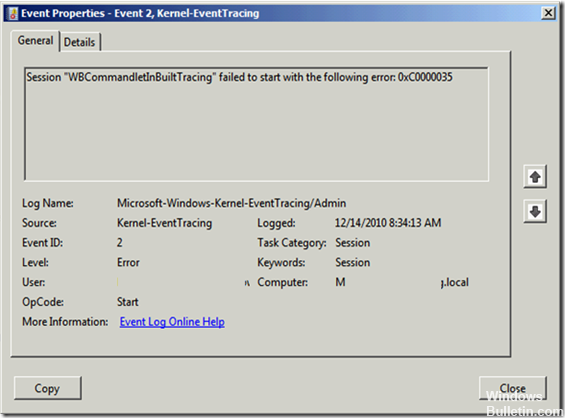
Многие пользователи Windows сталкиваются с сеансом ошибки «Циклическое ведение журнала контекста ядра», которое не началось со следующей ошибки: 0xc0000035. Повреждение операционной системы Windows является основной причиной проблем с Кольцевое ядро Контекстный регистратор 0xc0000035.
Alan is a hardcore tech enthusiast that lives and breathes tech. When he is not indulged in playing the latest video games, he helps users with technical problems that they might run into. Alan is a Computer Science Graduate with a Masters in Data Science.
Back to top button